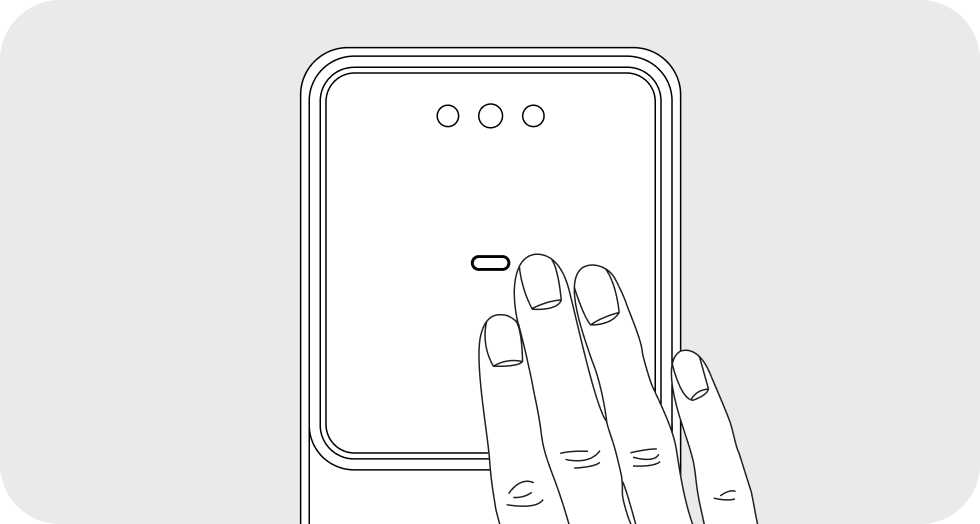
- When the user approaches the outdoor unit, the door lock automatically switches to recognition standby mode via the IR (infrared) sensor.
- If the user is not detected by the IR (infrared) sensor or the Welcome feature is turned off, press the outdoor keypad to switch to recognition standby mode.
- If an authentication method other than facial recognition fails five times in a row, an error tone will sound, followed by a voice message stating that authentication is unavailable for 3 minutes.
Face
The door opens when a registered face is recognized by the outdoor face recognition camera.
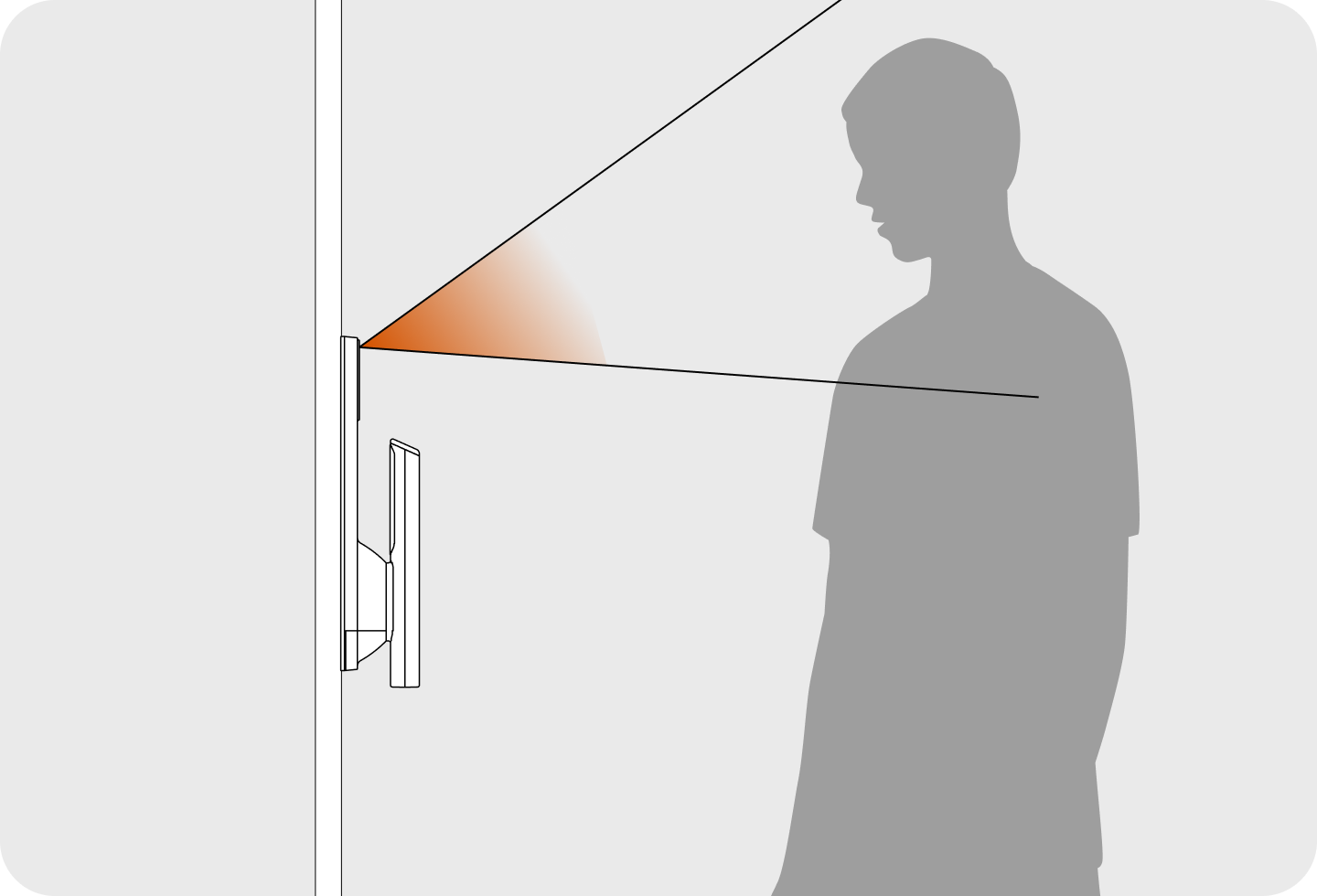
Guidelines to Prevent Face Recognition Malfunctions
- If recognition fails 5 consecutive times while in face recognition standby mode, the face recognition function will be suspended.
- If the face recognition function is suspended, press the outdoor keypad to return to recognition standby mode.
Face Recognition in Different Environments
- Normal face recognition is possible even in complete darkness.
- Face recognition may fail if the camera is exposed to direct sunlight or if the user is wearing a mask, sunglasses, or an eye patch.
Fingerprint
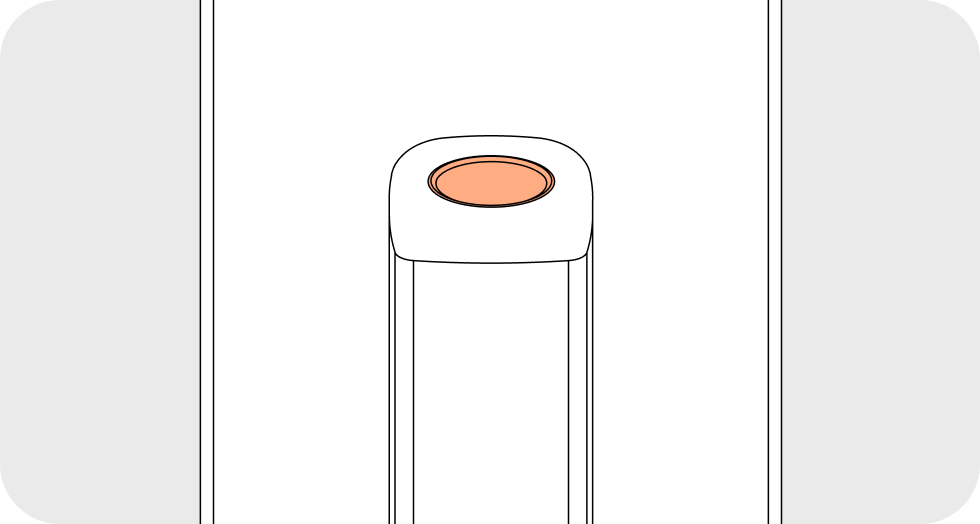
- Please place your registered fingerprint firmly on the fingerprint sensor above the handle.
- Wait about 1 sec, and the door will open.
Passcode
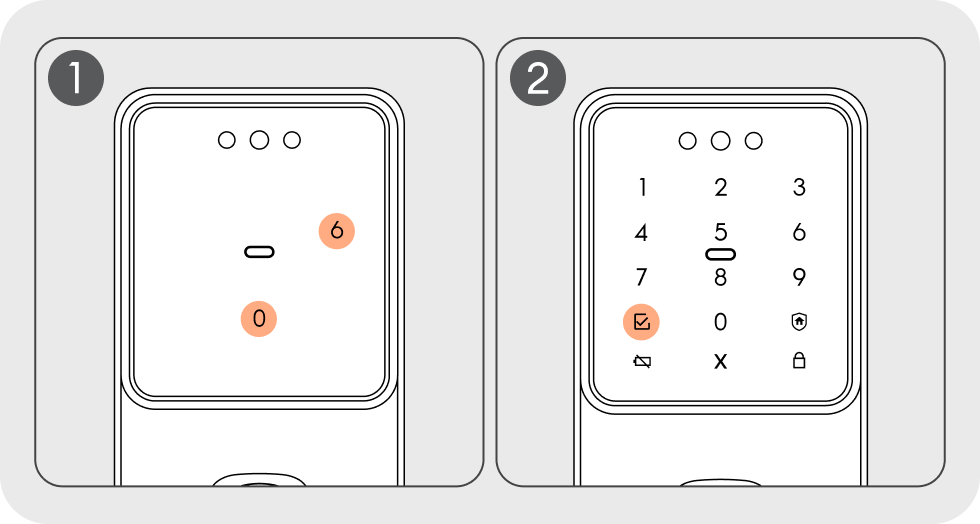
- When you approach the door lock, press the two numbers that appear randomly. (When Magic Number Dual Security is enabled)
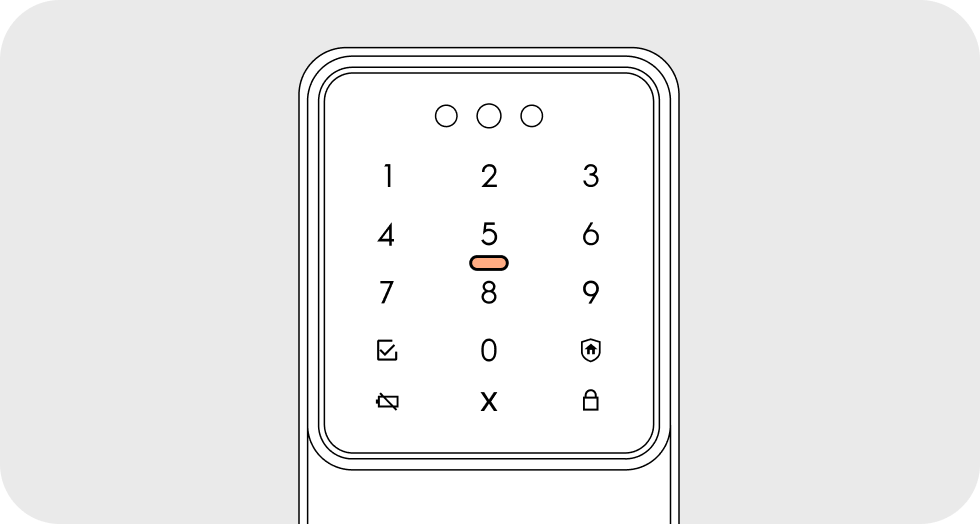
- Once all the numbers on the keypad are lit, enter your passcode (4–12 digits) and press the
 button.
Key Tag / Mobile Key
- Please place your registered key tag or mobile key (smartphone) directly against the key tag reader.
- Wait about 1 sec, and the door will open.
How to Use the Mobile Key
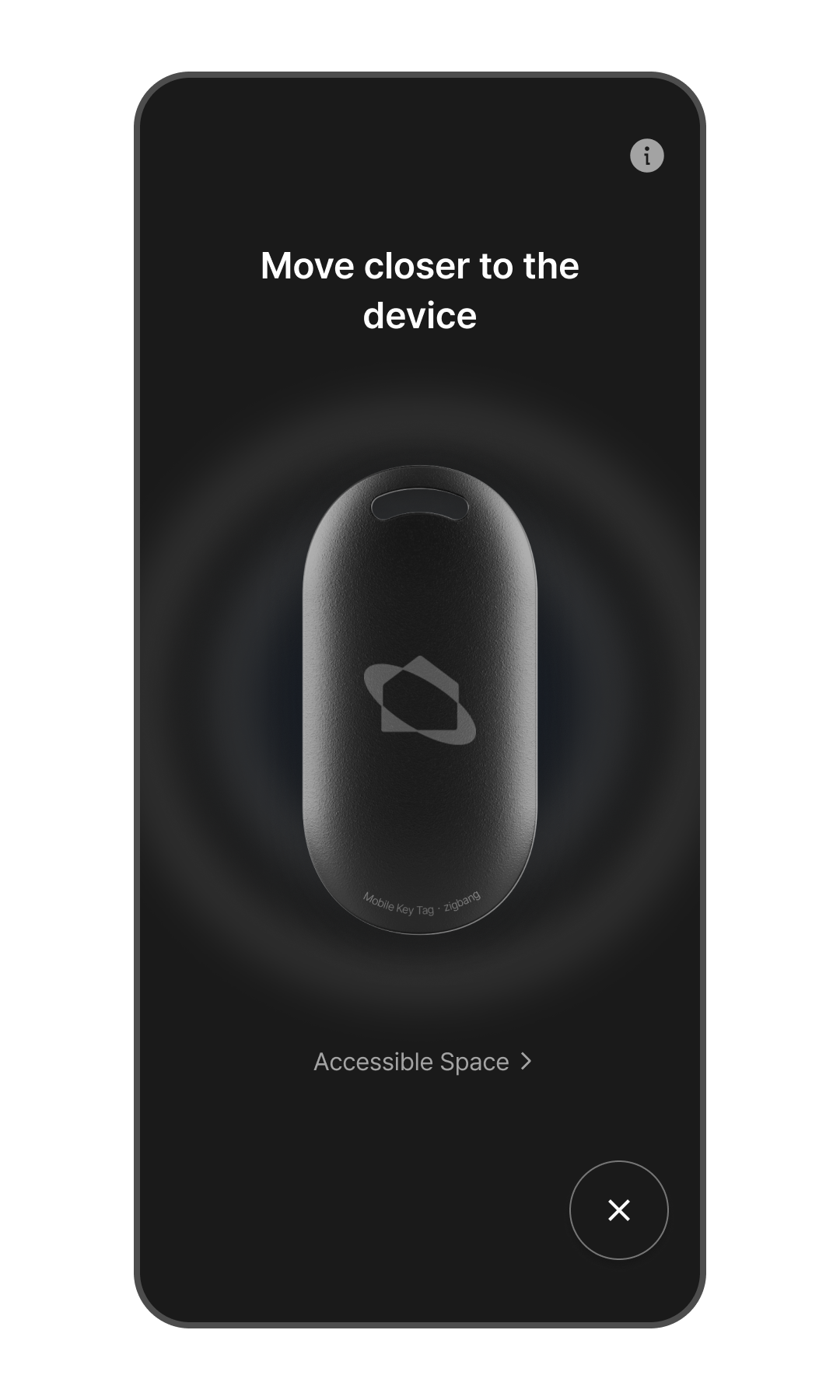
- Log in to the app and go to the Home screen.
- Tap the Mobile Key (Key Icon) button in the bottom right corner of the screen.
* The door lock must be registered to the Home screen to use the Mobile Key.
Approach the door lock so it can detect your presence. - Approach the door lock so it can detect your presence.
* The mobile key is ready to use as soon as the door lock's keypad lights up.
* If the keypad does not light up, check if the Welcome feature is enabled in "Door Lock > More (⋮) > Option Settings > Welcome Feature". - Hold your smartphone close to the door lock to unlock the door.
Mechanical Key
In an emergency—such as when digital authentication fails or the batteries are completely drained—you can unlock and open the door using the mechanical key.
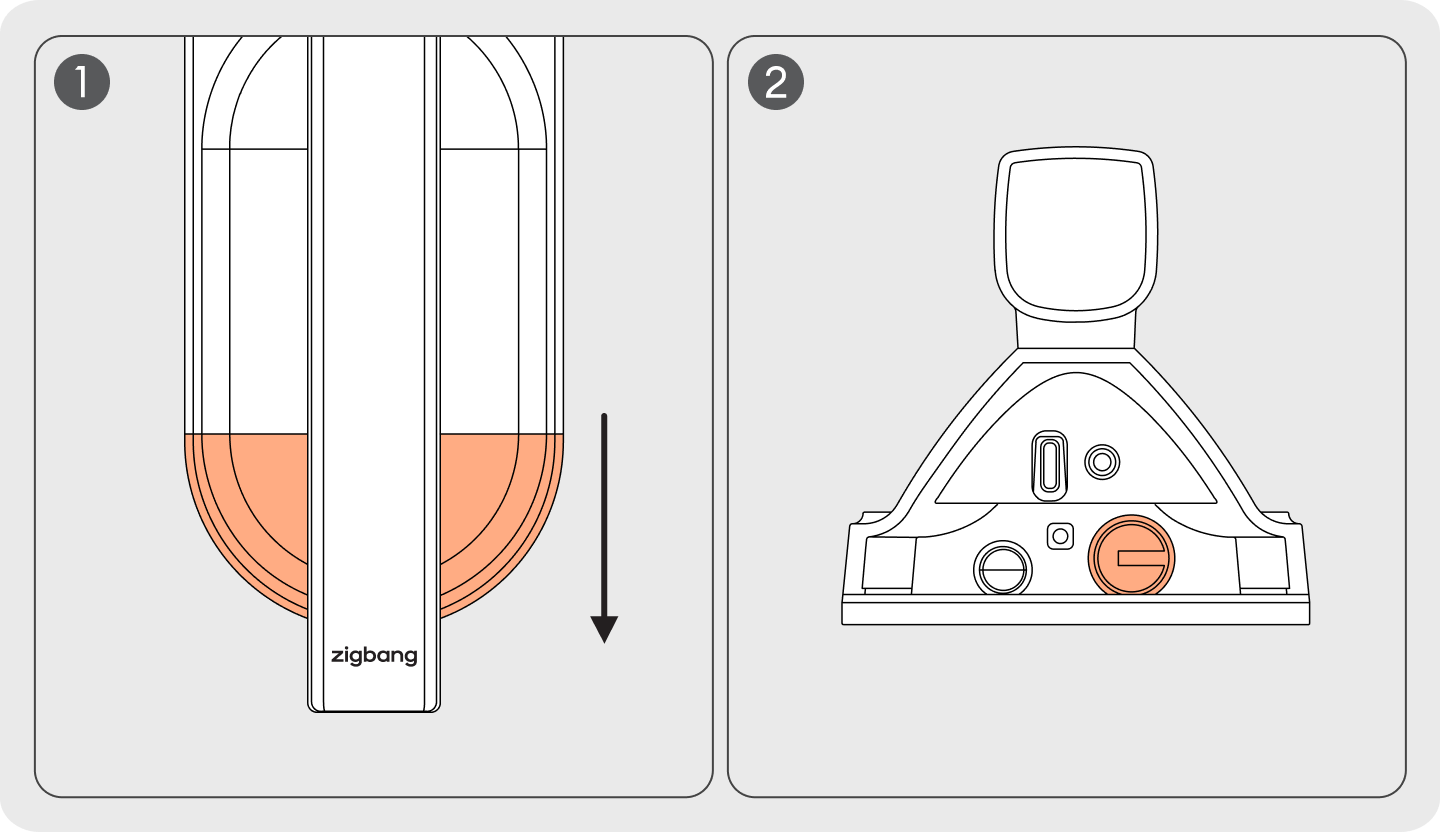
- Slide open the keyhole cover at the bottom of the outdoor unit.
- Insert the mechanical key fully into the keyhole.
- Turn the key to unlock and open the door.