Inviting Members
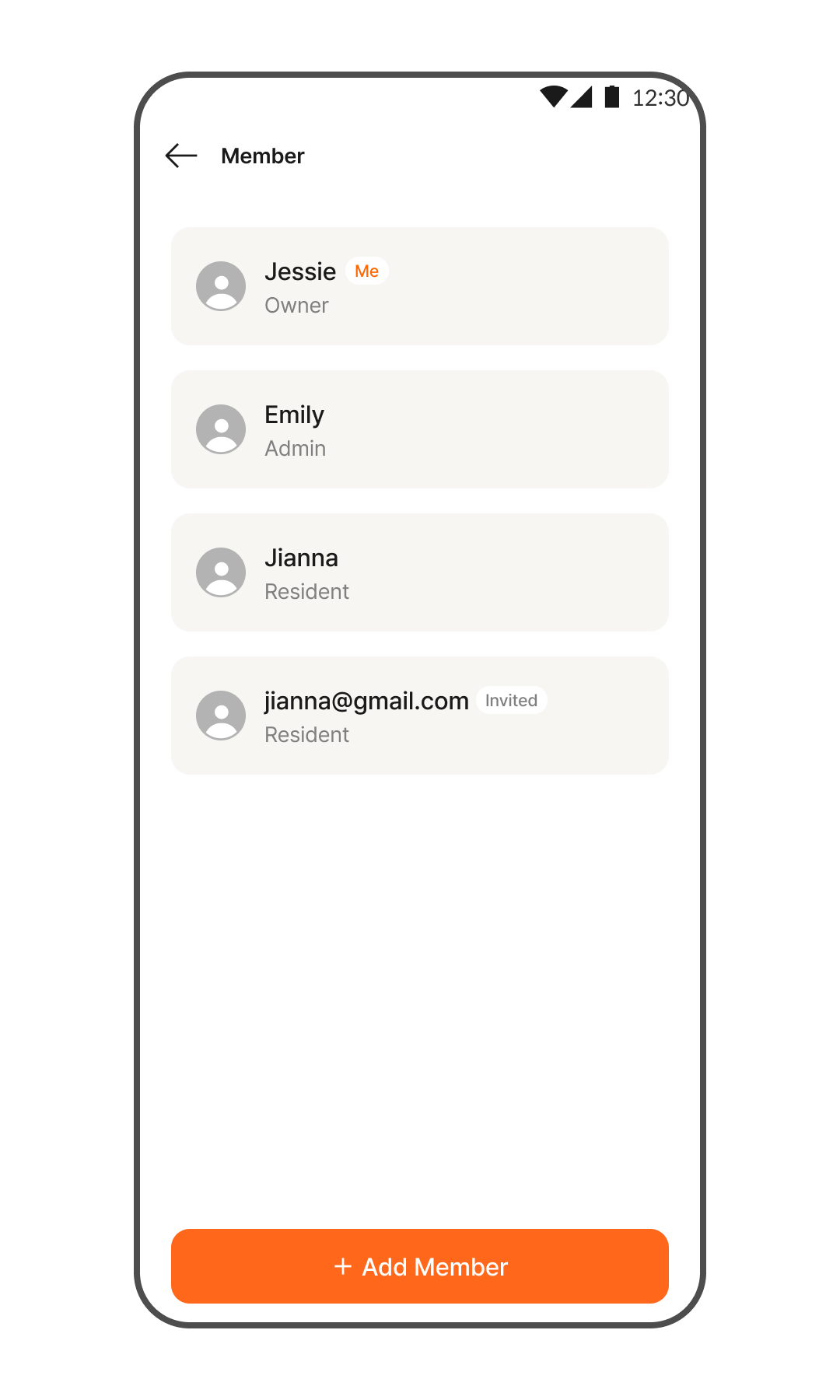
- Go to Home > Tap the [Members] button at the top.
*You can check the number of members currently sharing the Home. - To add a new member, tap the [Add Member] button.
- Enter the email account of the user you wish to invite.
- Select the permission level to assign to the member:
- Admin: Can view, control, and edit door locks (e.g., door opening, key issuance, editing door lock names, option settings, and device deletion). Can also manage Home members (adding and deleting members).
- Resident: Can view and control door locks (e.g., door opening and key issuance).
- The new member has been added.
ℹ️ Note: The [Owner] refers to the member who created the Home and holds the same privileges as an Admin.
Accepting a Member Invitation
- An app invitation email will be sent to the new member. Tap the [Go to SOMA App] button to install the app.
*If you don't receive the invitation email, please check your spam/junk folder. - Proceed with account registration using the email address that received the invitation email.
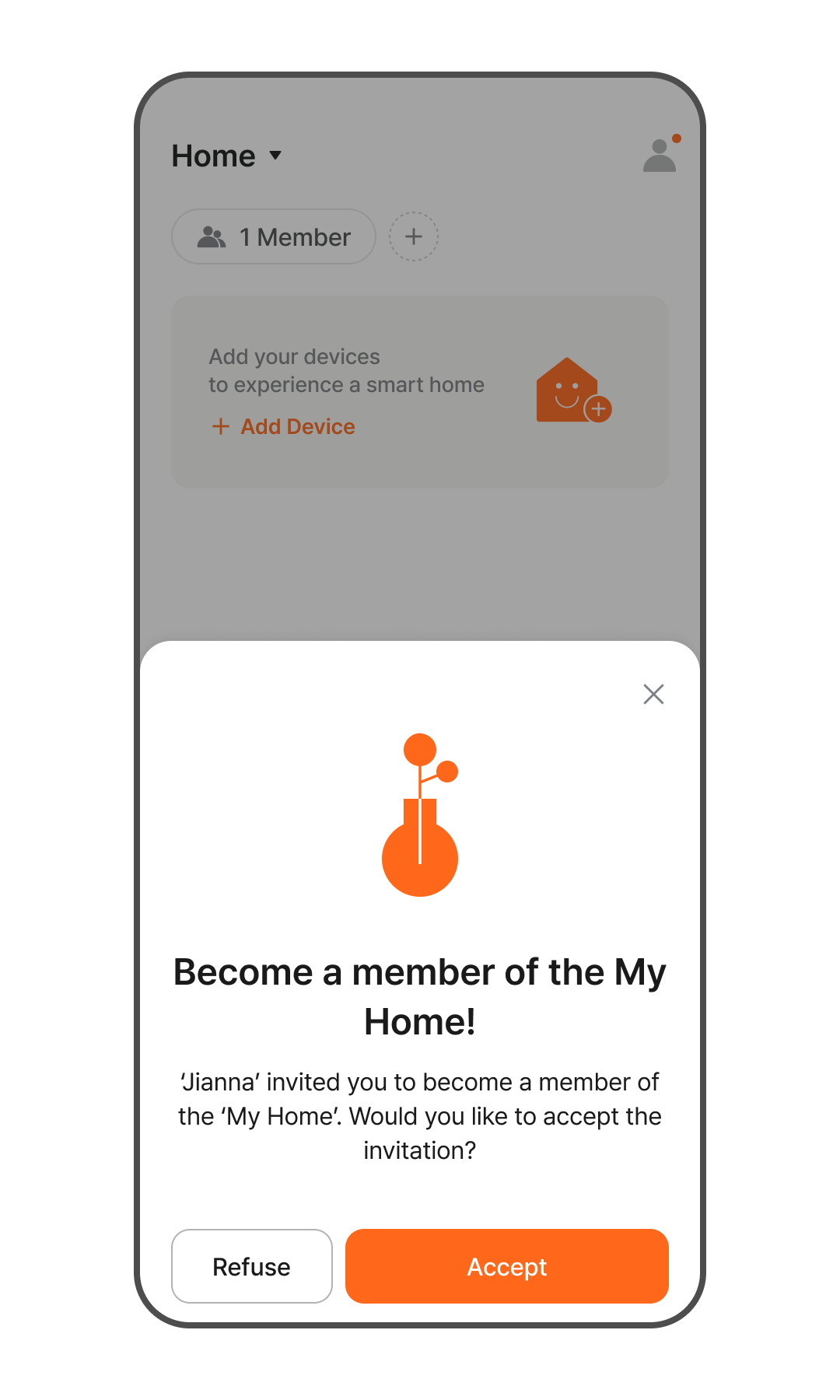
*Please refer to the "Sign Up" manual. - Upon logging in, you will see the invitation prompt. Tap the [Accept] button.
*If the invitation prompt does not appear, tap the person-shaped icon in the top right corner. - You will be redirected to the invited Home, where you can control the shared Home and devices.