Access the Home screen and tap the [Add Device] button. * This menu may not be visible depending on your member permissions.
Allow all permissions (Camera, Location, and Bluetooth) for door lock registration. * You cannot register the device if permissions are not granted. (Wi-Fi must be turned on.)
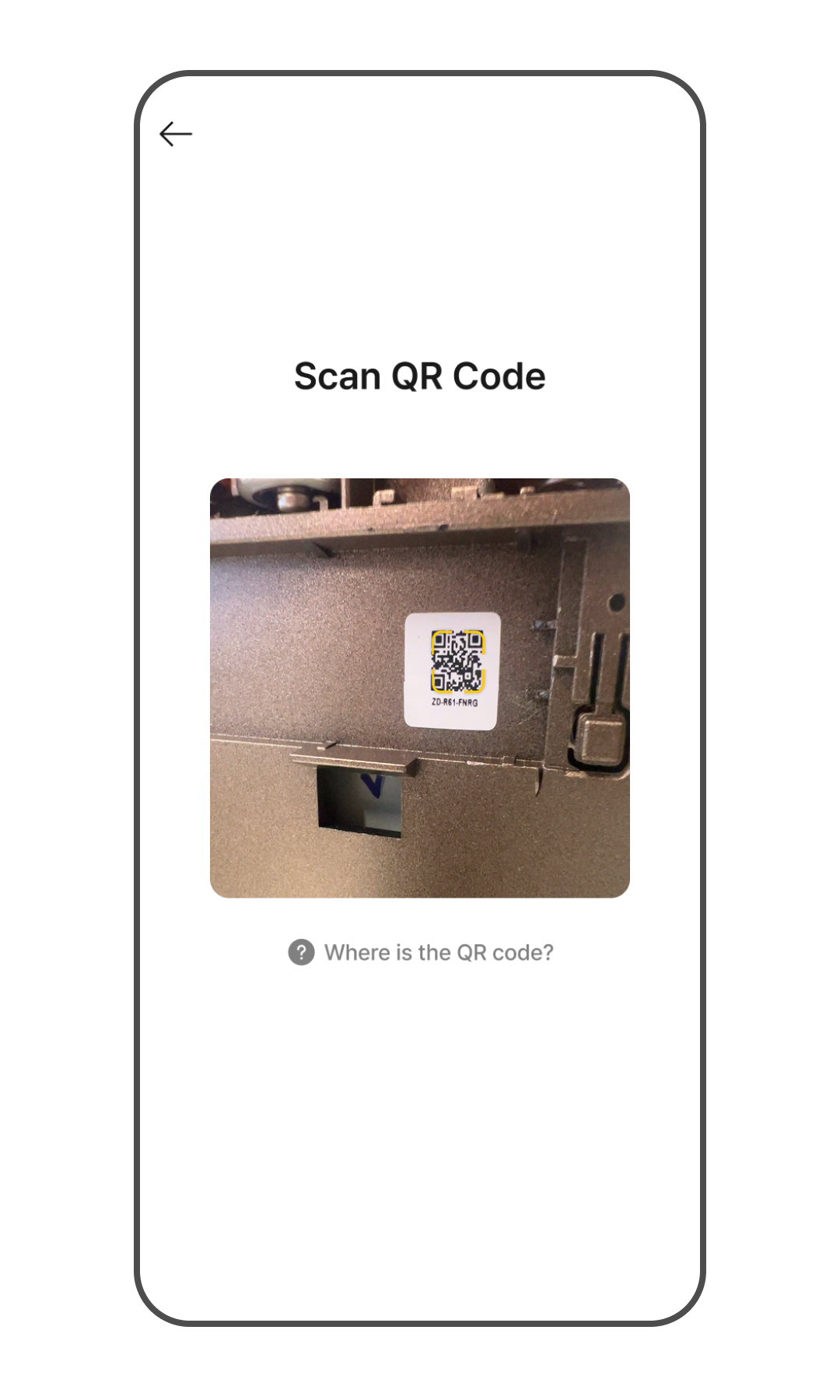
Scan the QR code attached to the inside of the door lock cover. Alternatively, a QR code is included in the product packaging. * If the QR code cannot be scanned or found, tap [Where is the QR code?] at the bottom and follow the instructions.
Press the registration button for 1 second to set the door lock to registration mode. * The registration button is located inside the door lock battery cover.
Select your Wi-Fi network and enter the password to connect the door lock to the network. * Only 2.4 GHz Wi-Fi networks are supported.
Do not close the app while the door lock is being registered. This may take some time.
Once the door lock registration is complete, proceed to the next step (Adding Authentication Methods).