You can configure various settings for your door lock (such as Wi-Fi, Volume, Auto Lock, and more). All settings are easily managed through the app, while some core features can also be adjusted directly on the device.
Manage on the App
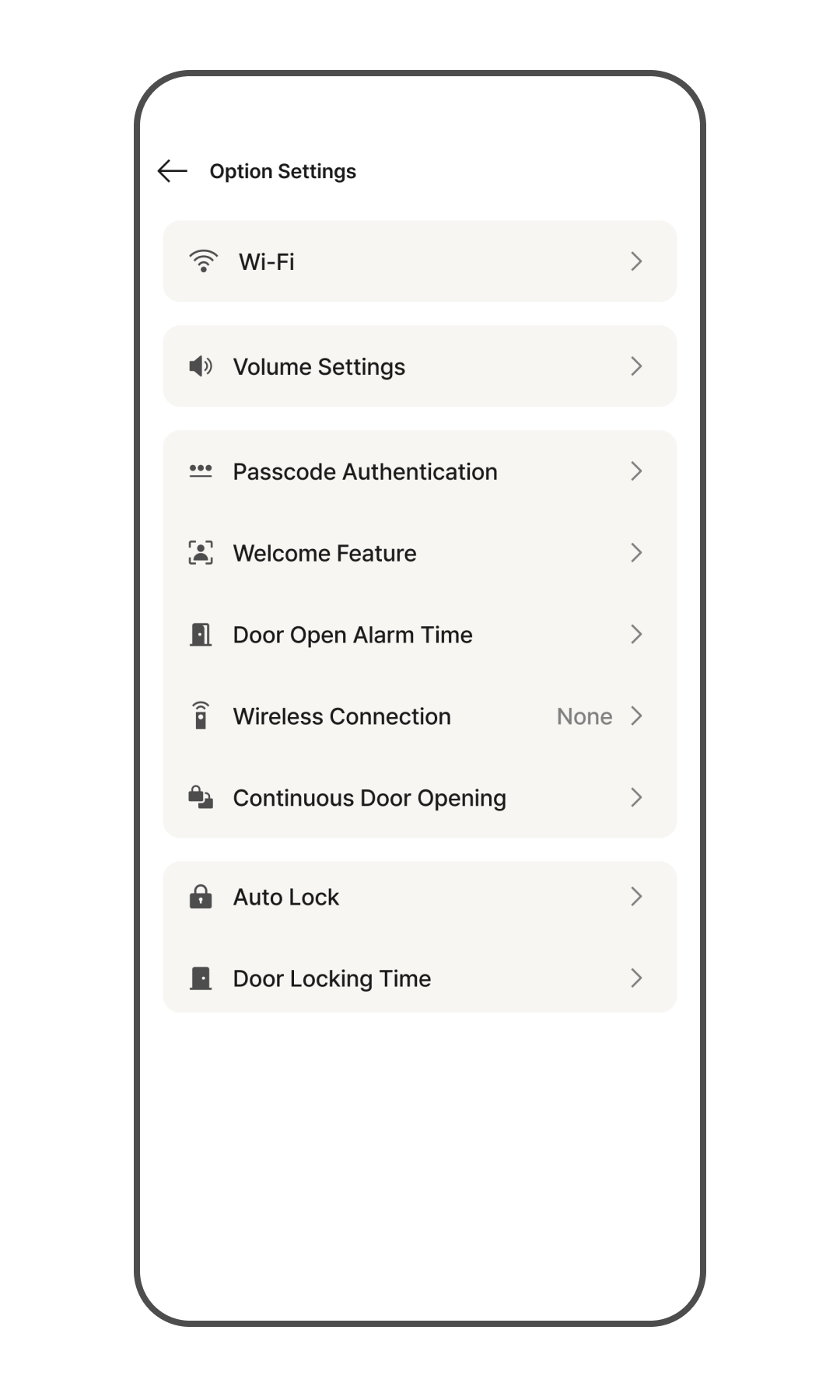
- From the app Home screen, tap [Door Lock].
- Tap [More (⋮)] in the upper-right corner.
- Select [Option Settings].
Manage Settings on the Device
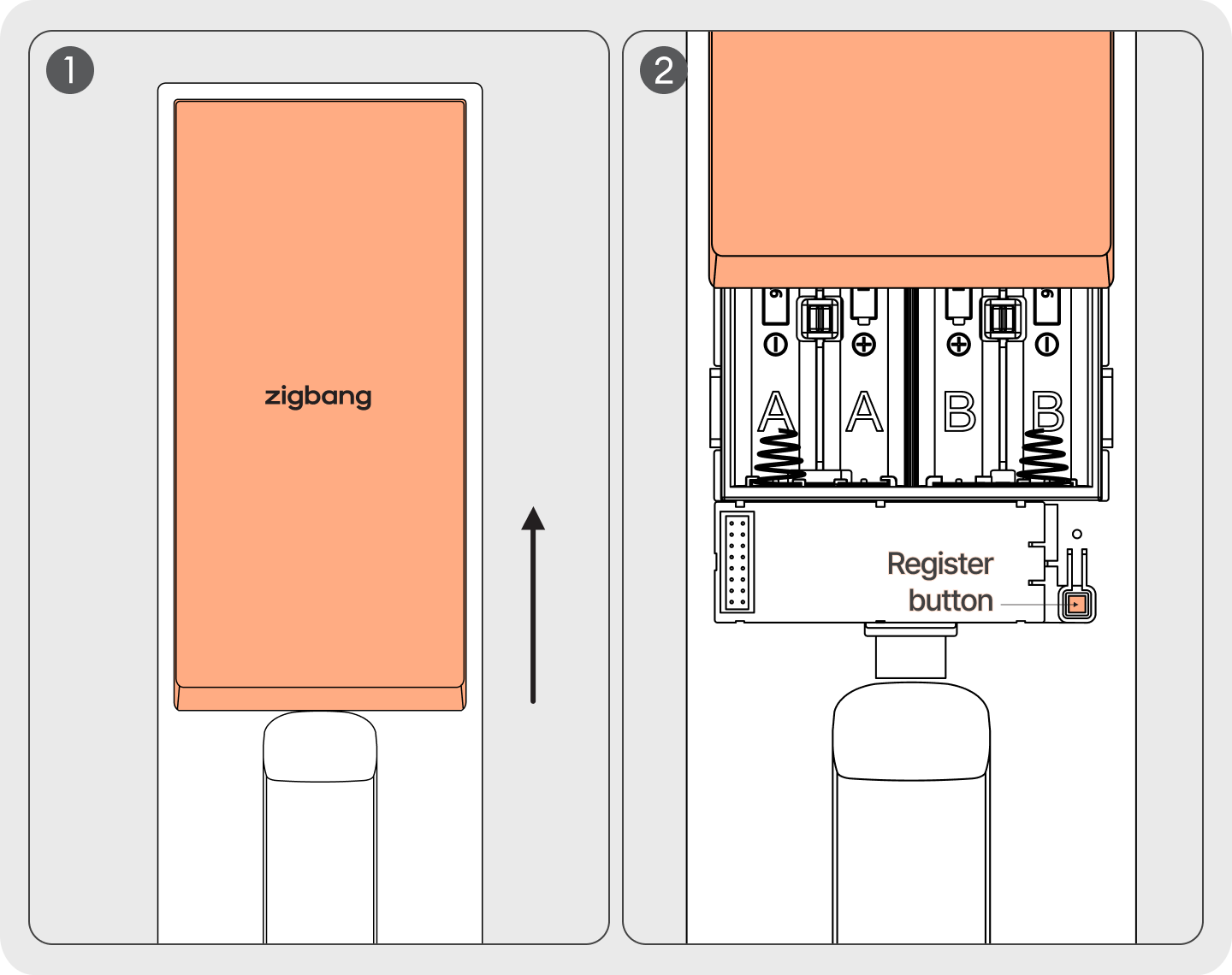
- Open the battery cover on the indoor unit.
- Press and hold the [Register] button on the indoor unit for at least 5 seconds until you hear the voice prompt.
- Press the
 button on the outdoor unit's keypad to enter "Setup."
 - Follow the voice prompts to configure your desired features.
Voice and Sound Effects Volume
This feature allows you to adjust the volume of voice guidance and sound effects output from the door lock. Emergency alarms and setup sounds are not affected by this setting.
Manage on the App
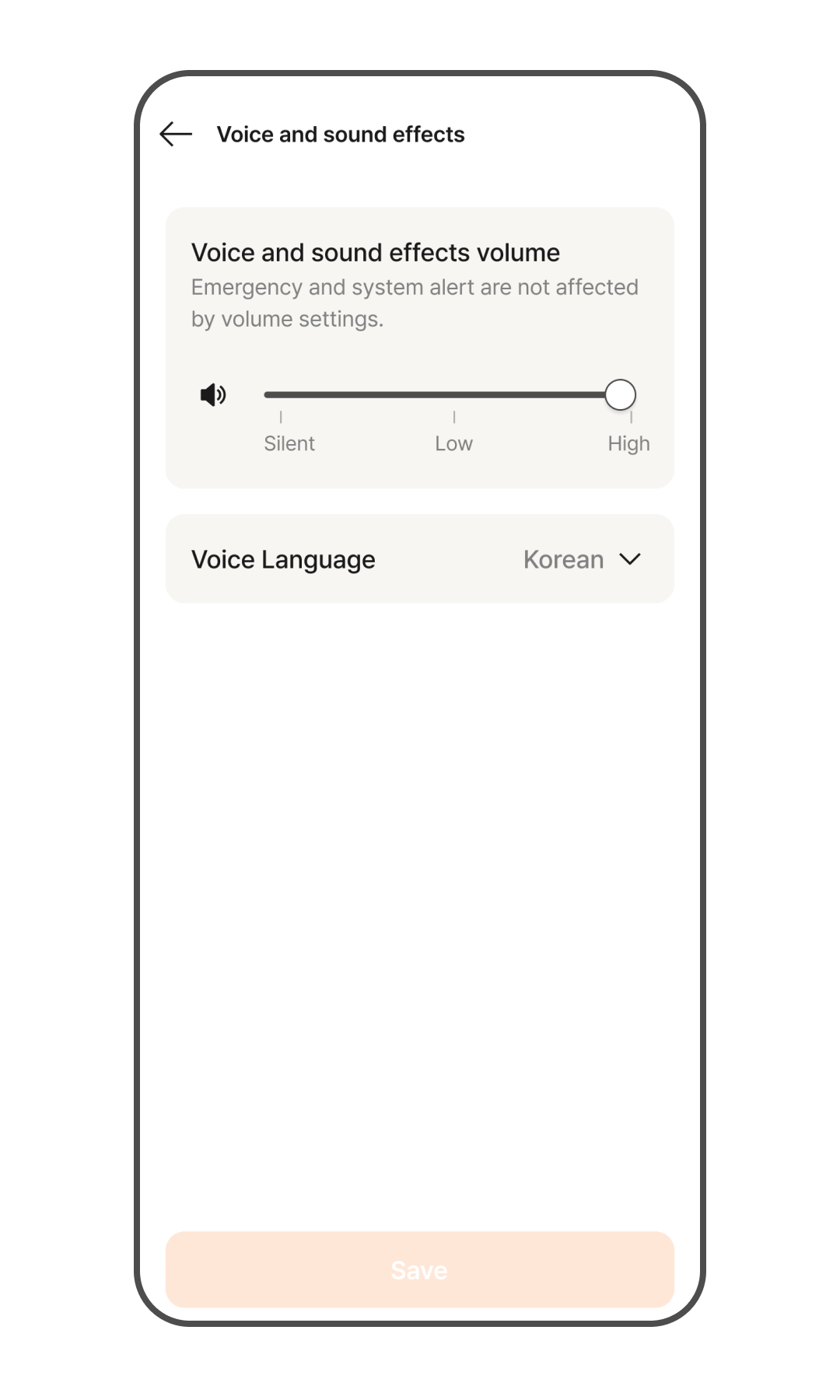
- Go to Door Lock > More (⋮) > Option Settings on the app Home screen.
- Tap [Voice and sound effects].
- Adjust the slider to set the volume. You can set it to 3 levels: Silent, Low, or High, and the default setting is Low.
Manage on the device
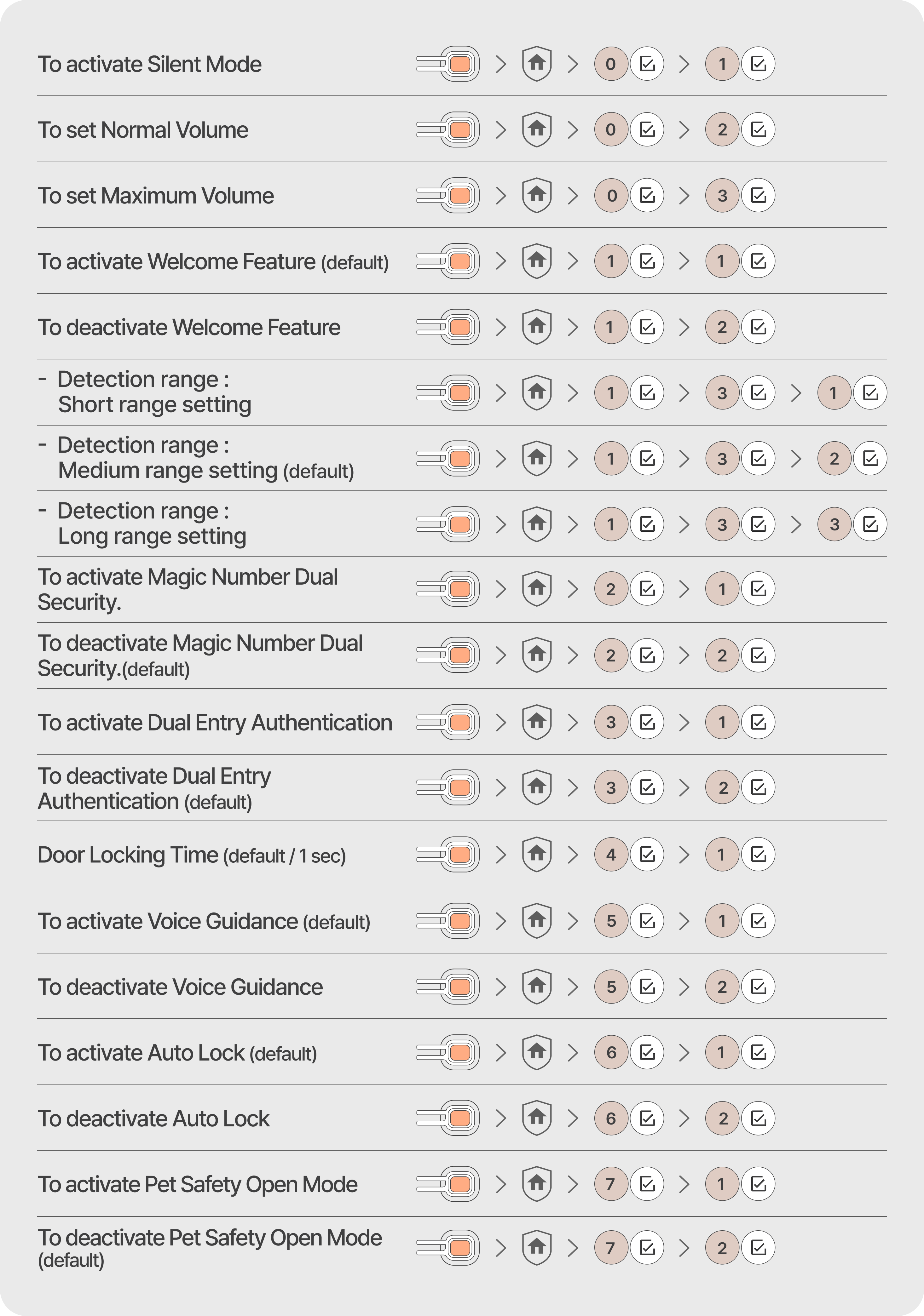
- To set Silent Mode : Register (Hold 5 sec) > > 0 +
 > 1 +
> 1 + - To set Low Volume : Register (Hold 5 sec) > > 0 + > 2 +
- To set High Volume : Register (Hold 5 sec) > > 0 + > 3 +
Welcome Feature
When you approach the door, this feature automatically detects you, lights up the keypad, and activates the key tag and fingerprint sensors so the lock is ready for instant authentication. (Default: ON)
Manage on the App
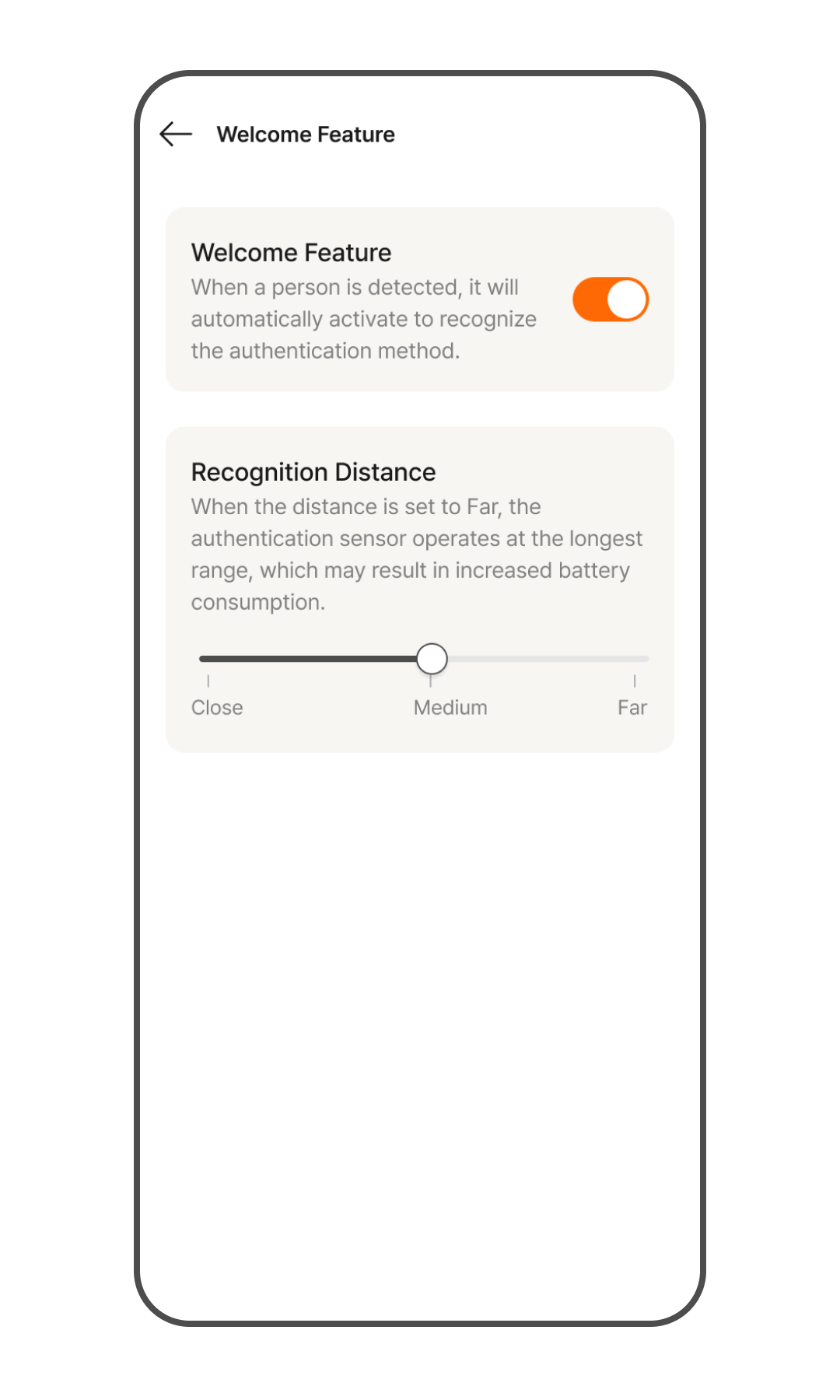
- From the app Home screen, go to: Door Lock > More (⋮) > Option Settings.
- Tap [Welcome Feature].
- Toggle the [Welcome Feature] switch to enable or disable it. (Default: ON)
- Under the Recognition Distance section, adjust the slider to your preferred range: Close, Medium, or Far. (Default: Medium)
Manage on the device
- To Enable (Default): Register (Hold 5 sec) > > 1 + > 1 +
- To Disable: Register (Hold 5 sec) > > 1 + > 2 +
- Detection range setting
- Close : Register (Hold 5 sec) > > 1 + > 3 + > 1 +
- Medium : Register (Hold 5 sec) > > 1 + > 3 + > 2 +
- Far : Register (Hold 5 sec) > > 1+ > 3+ > 3+
- Close : Register (Hold 5 sec) >
Magic Number Dual Security
This mode prevents passcode exposure by requiring you to enter two random numbers before entering your passcode. The default setting is Magic Number Dual Security mode disabled.
Manage on the App
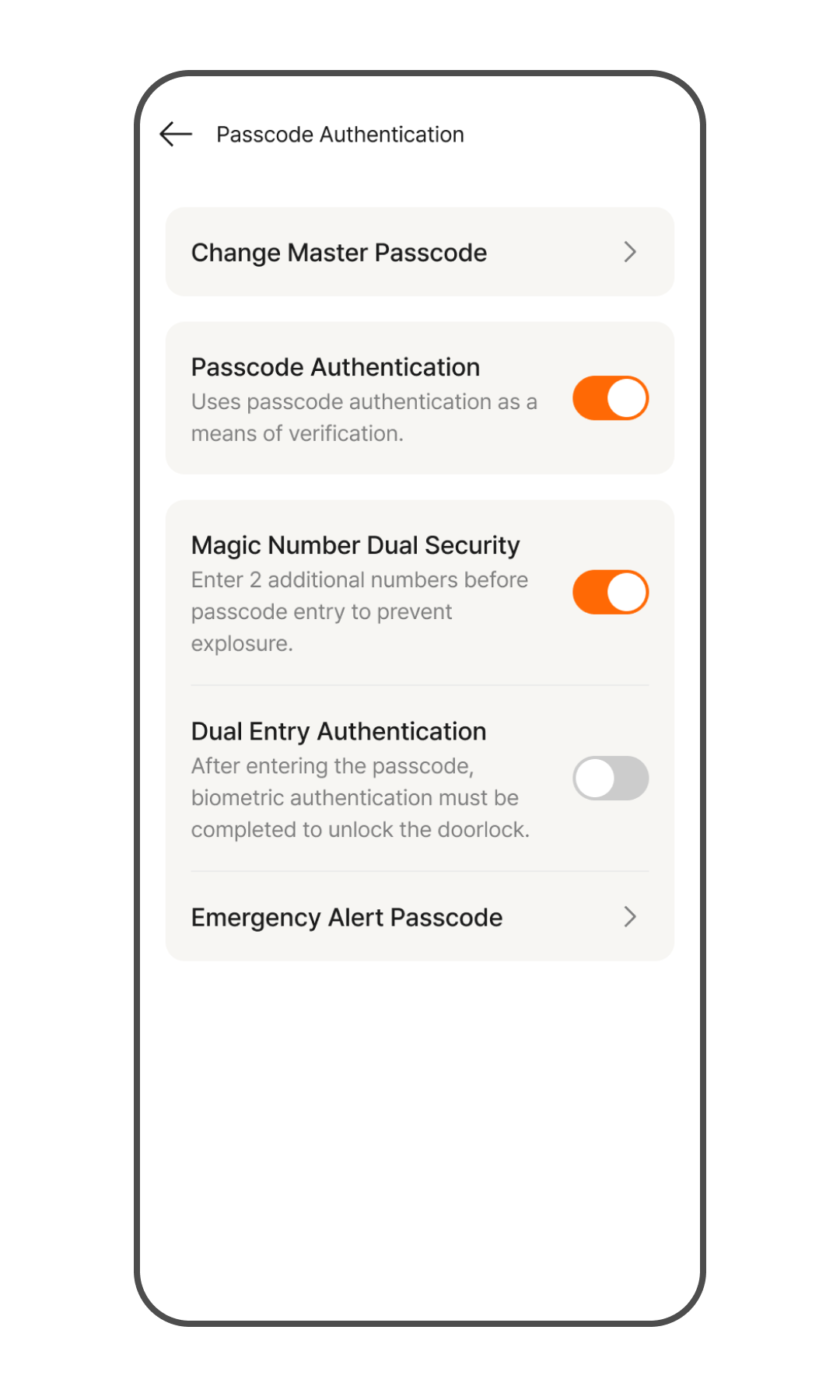
- Go to Door Lock > More (⋮) > Option Settings on the app Home screen.
- Tap [Passcode Authentication].
- Turn on the [Passcode Authentication] toggle. If it is already on, you can skip this step.
- Turn on the [Magic Number Dual Security] toggle to enable the feature. The default setting is OFF.
Manage on the device
- To Enable: Register (Hold 5 sec) > > 2 + > 1 +
- To Disable (Default): Register (Hold 5 sec) > > 2 + > 2 +
Dual Entry Authentication
Dual Entry Authentication is a feature where the door opens only after passcode authentication followed by fingerprint or face authentication. It is recommended if you are concerned about passcode leaks or want to enhance security further.
- Prerequisites: To use this feature, Passcode Authentication must be turned on, and at least one fingerprint or face must be registered. The default setting is disabled.
- How it Works: When Dual Entry Authentication mode is activated, all master, user, and temporary passcodes require additional fingerprint or face authentication after passcode authentication to open the door. The door cannot be opened using other authentication methods alone, such as key tags.
- Visitor Access: Visitors without a registered fingerprint or face cannot enter using only a temporary passcode. If visitor access is required, please disable Dual Entry Authentication mode or use Remote Unlock.
Manage on the App
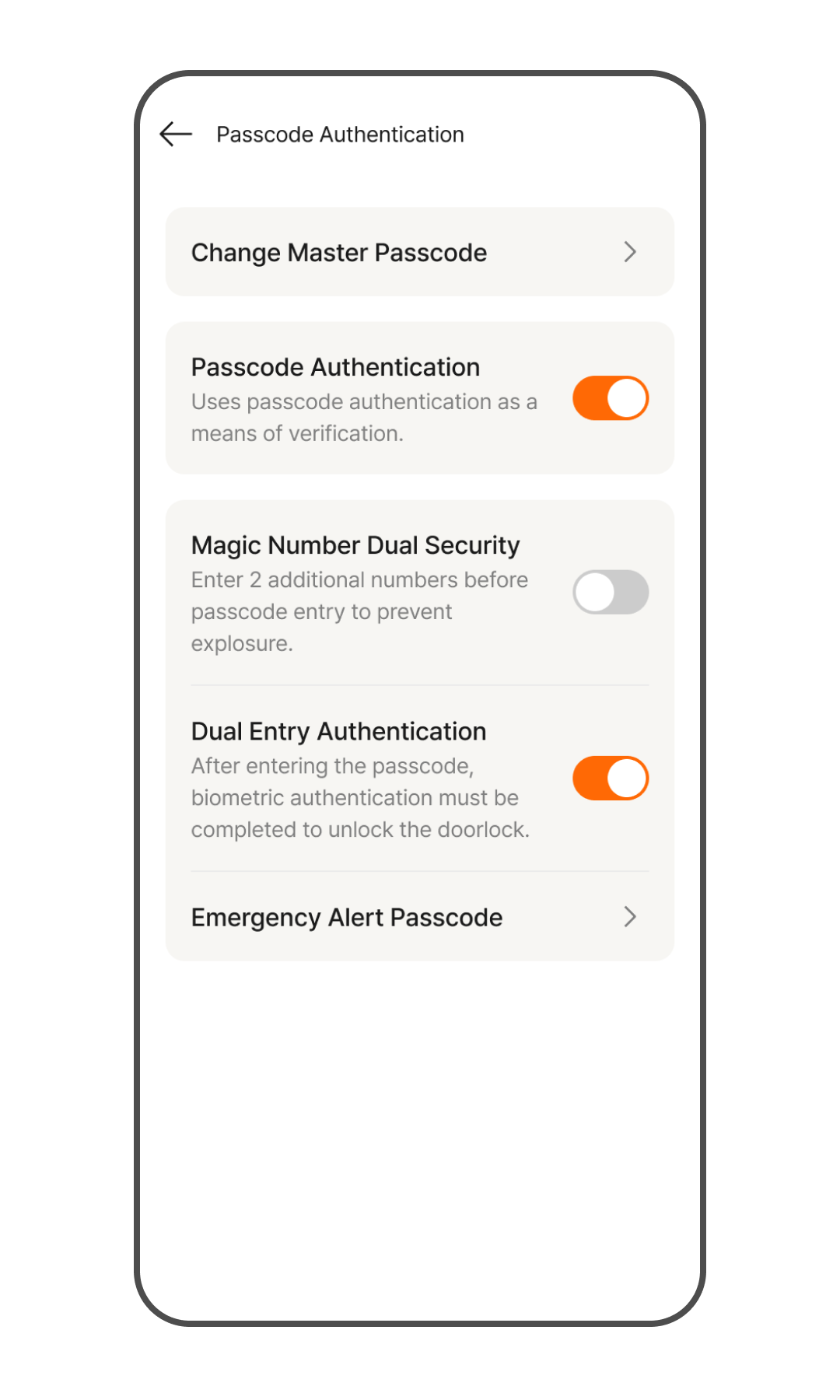
- Go to Door Lock > More (⋮) > Option Settings on the app Home screen.
- Tap [Passcode Authentication].
- Ensure the [Passcode Authentication] toggle is turned on. (Skip this step if it is already enabled.)
- Toggle the [Dual Entry Authentication] switch to enable the feature. (Default: OFF)
Manage on the device
- To Enable: Register (Hold 5 sec) > > 3 + > 1 +
- To Disable (Default): Register (Hold 5 sec) > > 3 + > 2 +
Door Locking Time
This feature allows you to set the time for the door to lock automatically. If a deadbolt jam occurs depending on the usage environment, adjusting the door locking time can help resolve the jamming issue.
Manage on the App
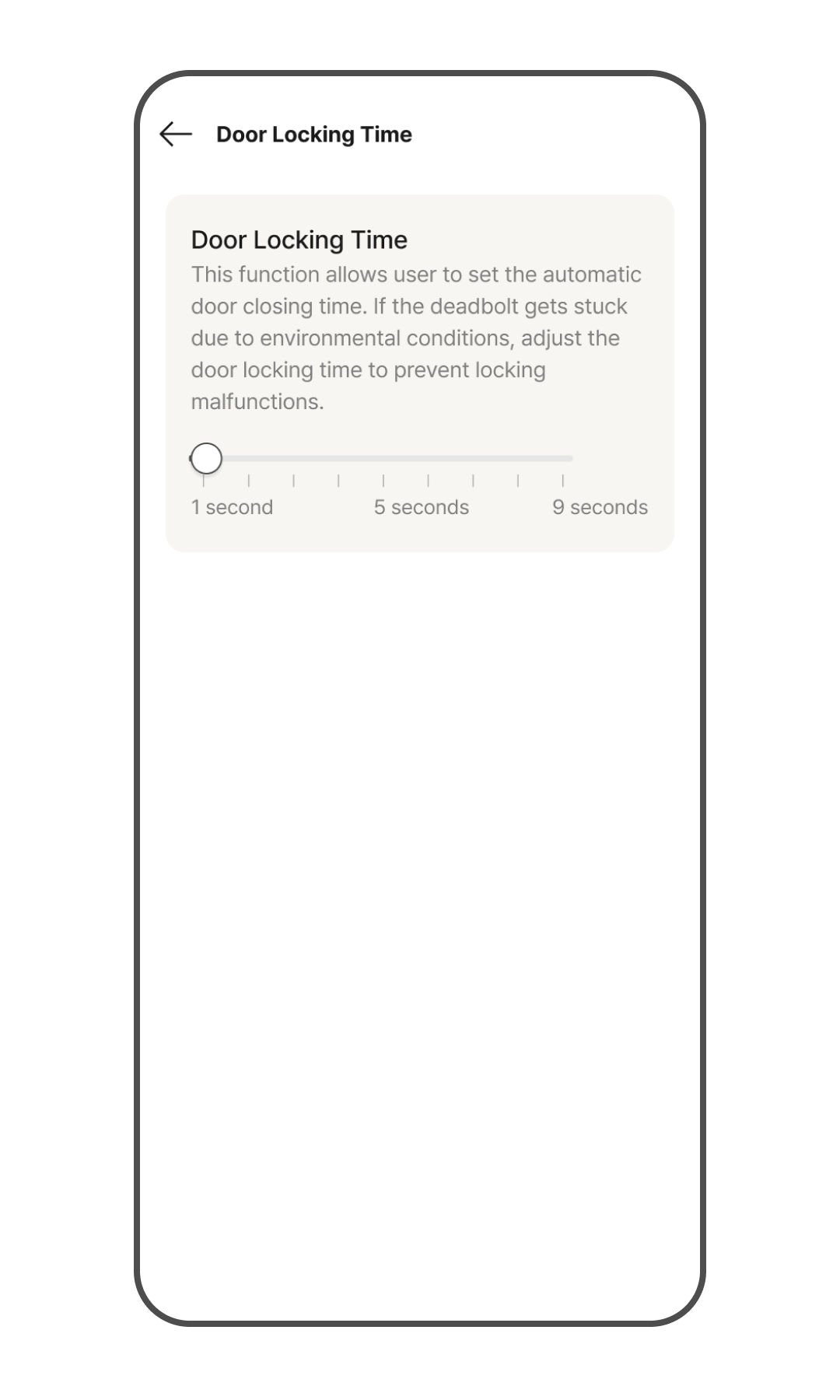
- Go to Door Lock > More (⋮) > Option Settings on the app Home screen.
- Tap [Door Locking Time].
- Adjust the slider to set the time for the door to lock automatically. You can set it from 1 to 9 seconds in 1-second increments, and the default setting is 1 second.
Manage on the device
- Door Locking Time (Default: 1 sec): Register Button(over 5 sec) > > 4 + > 1 +
Note: Select a number between 1 and 9 to set the delay time in seconds. (Default: 1 sec)
Voice Guidance
This feature provides spoken guidance on how to use the door lock. Emergency alert guidance and setup guidance are not affected by this setting. The default setting is voice guidance enabled.
Manage on the App
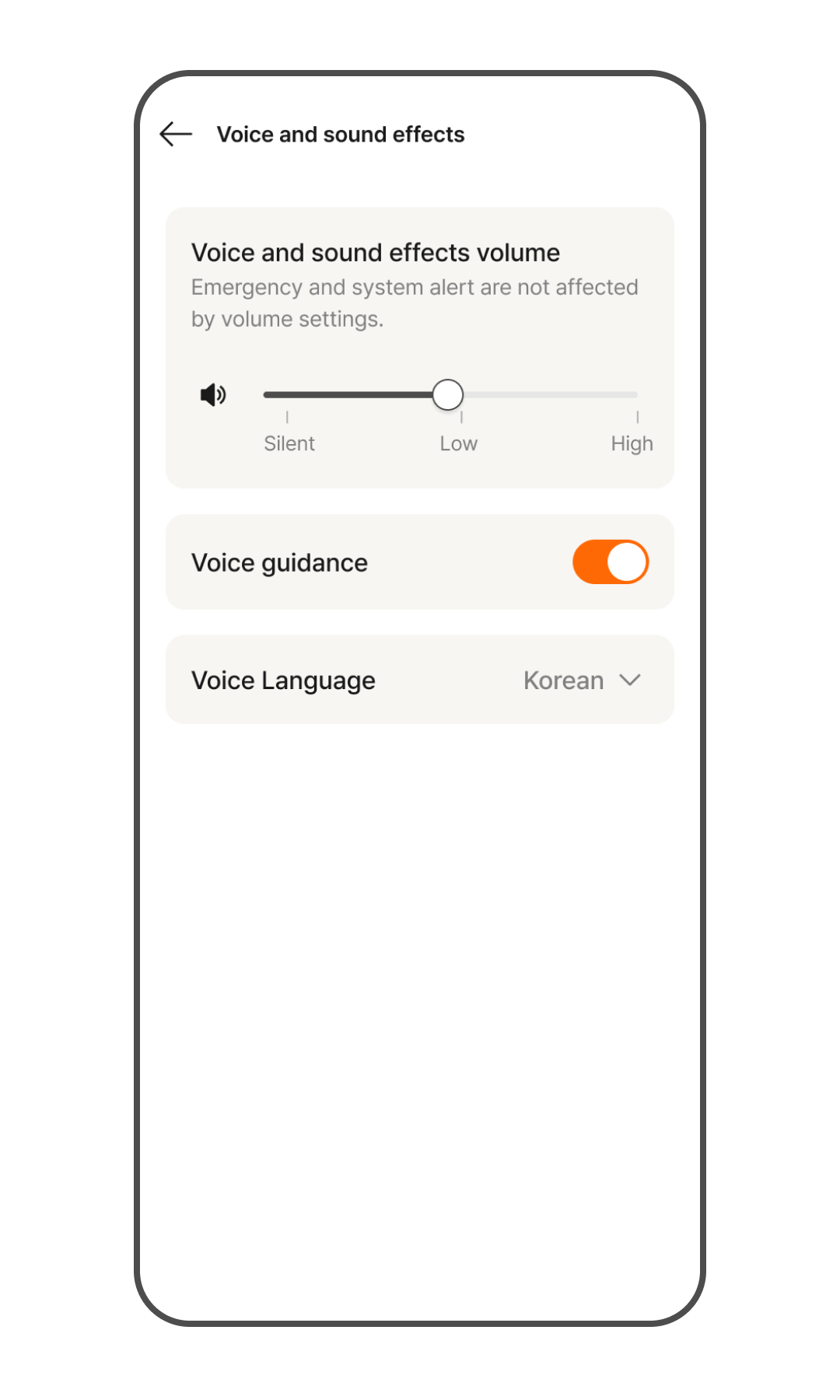
- Go to Door Lock > More (⋮) > Settings on the app Home screen.
- Tap [Voice and Sound Effects].
- Turn the voice guidance toggle on or off to enable/disable the feature.
Manage on the device
- To Enable(Default): Register (Hold 5 sec) > > 5 + > 1 +
- To Disable: Register (Hold 5 sec) > > 5 + > 2 +
Auto-Lock
- When Auto-Lock is Enabled
- The door locks automatically immediately upon closing.
- When Auto-Lock is Disabled
- The door does not lock when closed.
- To lock the door from the inside, turn the [Manual Thumbturn] on the indoor handle to the locked position.
- To lock the door from the outside, press the button on the keypad.
- To open the door from the outside, touch the keypad and press the button.
Manage on the App
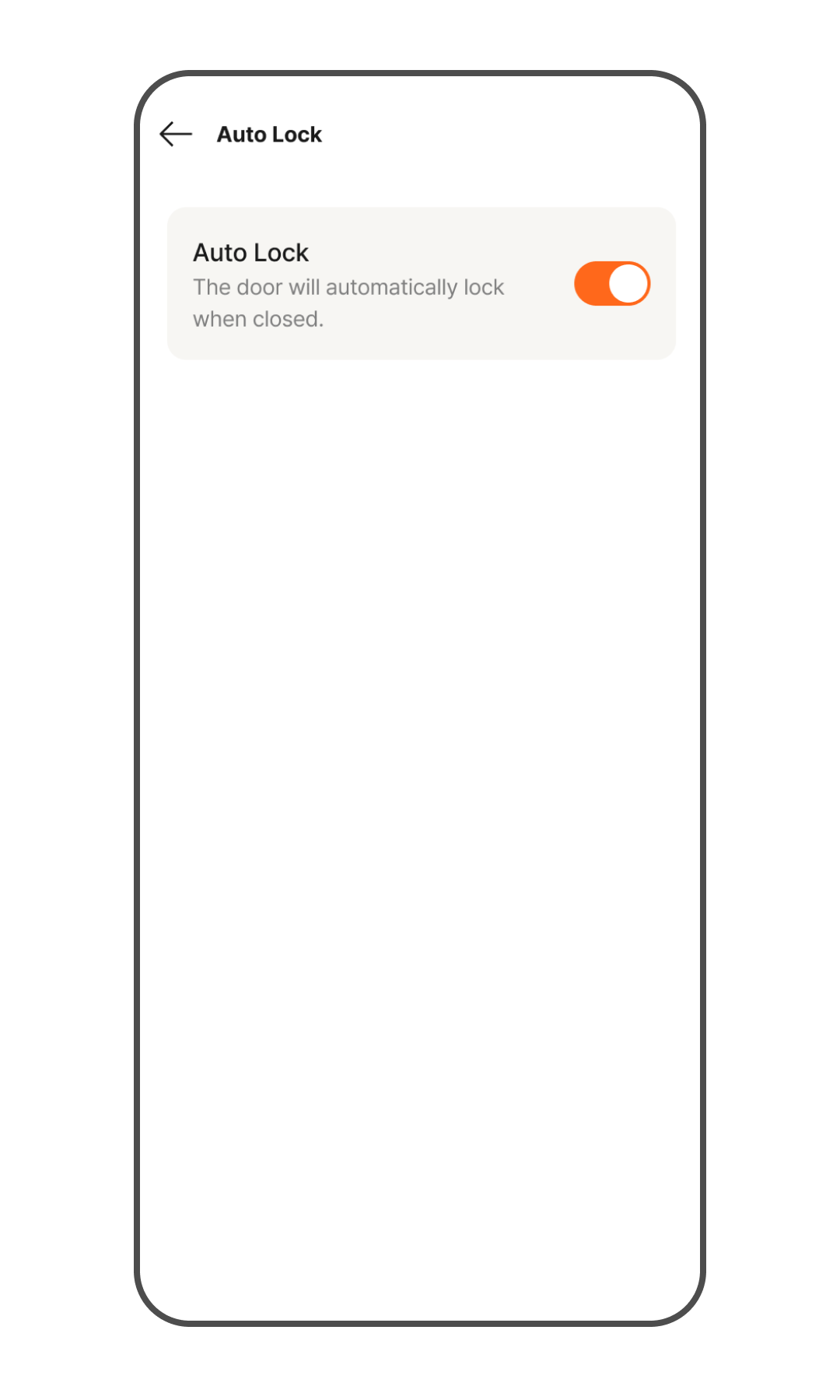
- Go to Door Lock > More (⋮) > Option Settings on the app Home screen.
- Tap [Auto Lock].
- Turn the toggle on or off to enable/disable the feature. The default setting is ON.
Manage on the device
- To Enable (Default): Register (Hold 5 sec) > > 6+ > 1+
- To Disable: Register (Hold 5 sec) > > 6 + > 2 +
Pet Safety Open
When this feature is enabled, opening the door from the inside requires gripping both the front and back of the handle simultaneously. Since simply touching the handle with one hand will not open the door, it helps prevent pets or young children from leaving the house unaccompanied.
Manage on the App
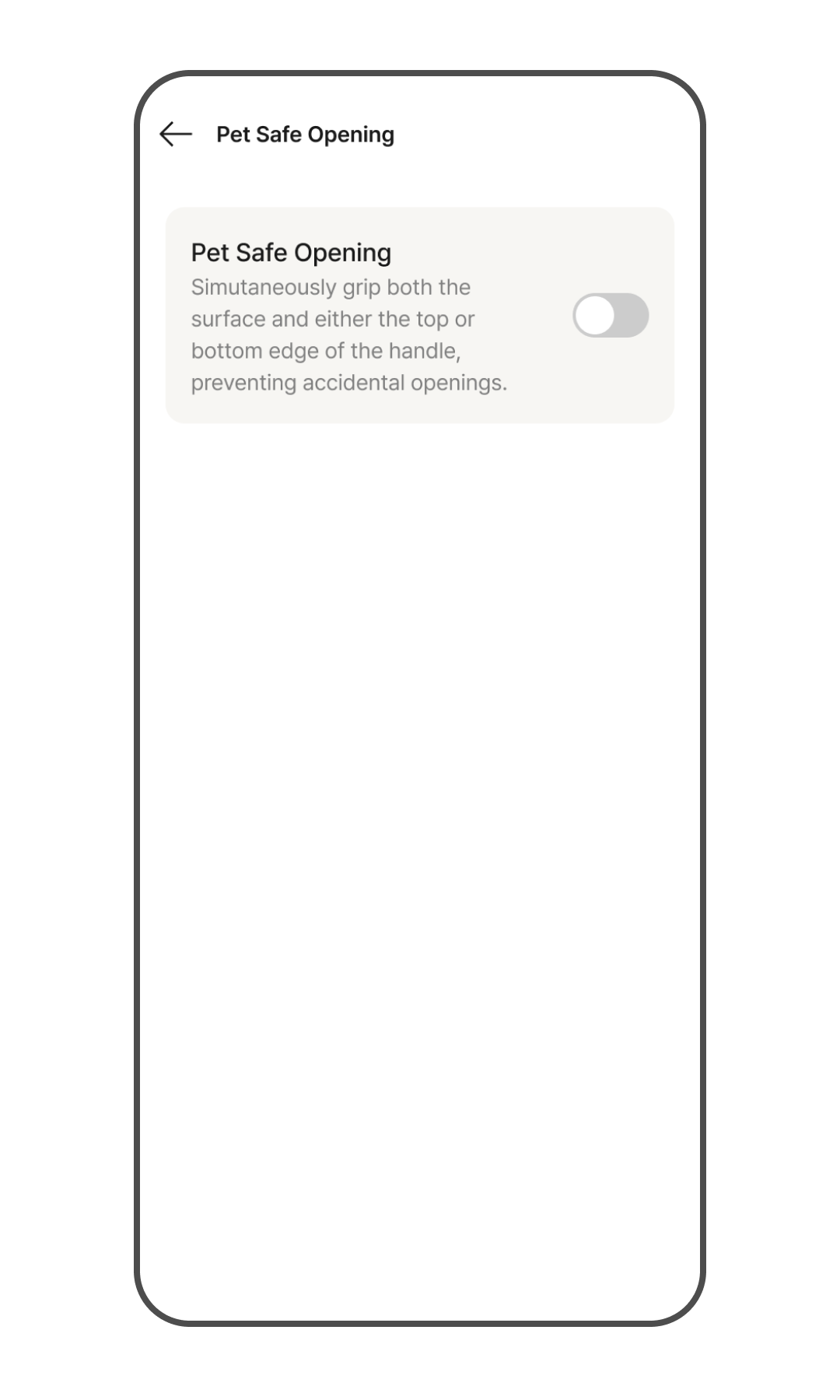
- Go to Door Lock > More (⋮) > Option Settings on the app Home screen.
- Tap [Pet Safety Open].
- Turn the toggle on or off to enable/disable the feature. The default setting is OFF.
Manage on the device
- To Enable: Register (Hold 5 sec) > > 7 + > 1 +
- To Disable(Default): Register (Hold 5 sec) > > 7 + > 2 +
Wi-Fi Settings
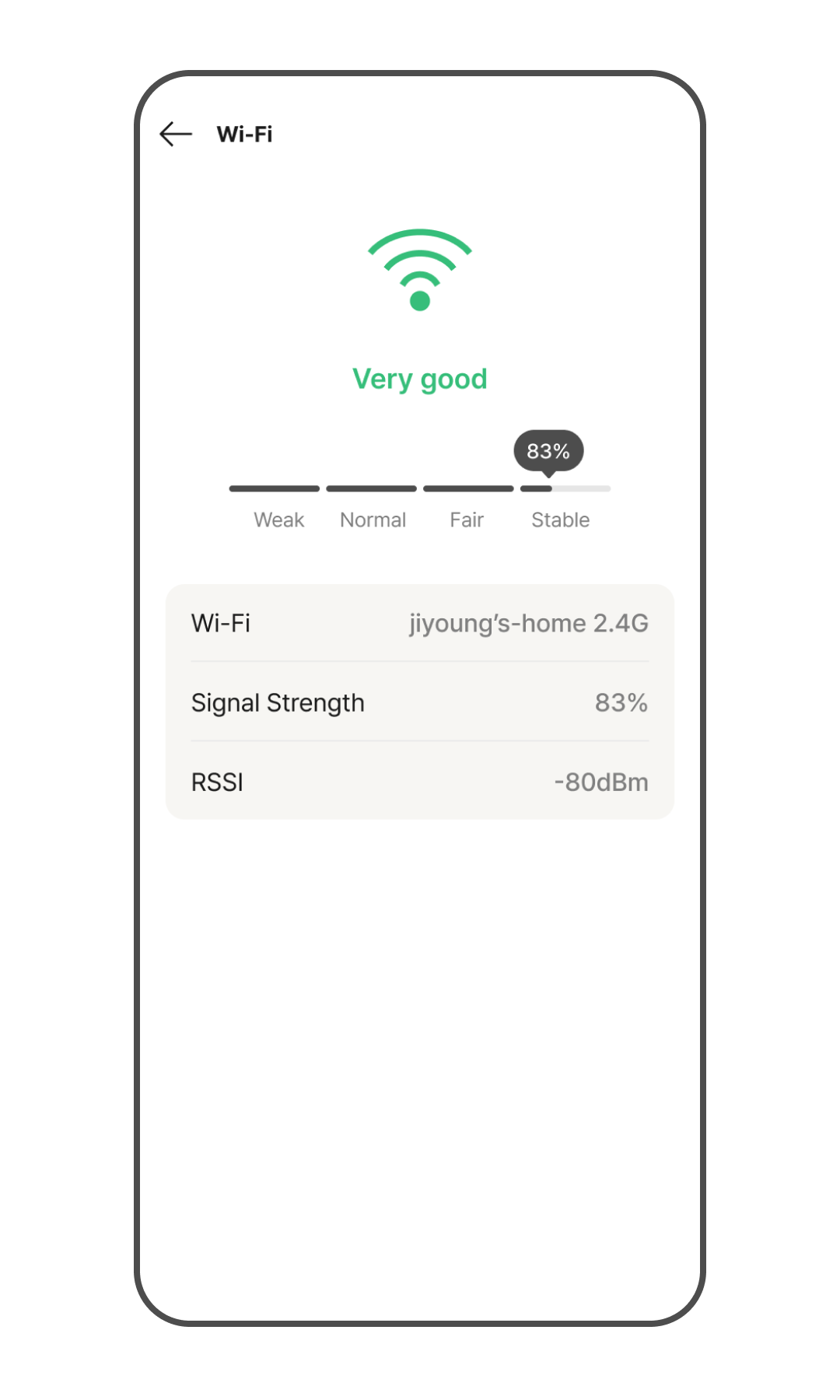
This screen allows you to check the status of the Wi-Fi network connected to the door lock. You can check the name of the currently connected Wi-Fi, signal strength, and RSSI value, and guidance messages are displayed depending on the signal status.
Manage on the App
- Go to Door Lock > More (⋮) > Option Settings on the app Home screen.
- Tap Wi-Fi.
- You can check the currently connected Wi-Fi name, signal strength (%), and RSSI value.
Sequential Unlock
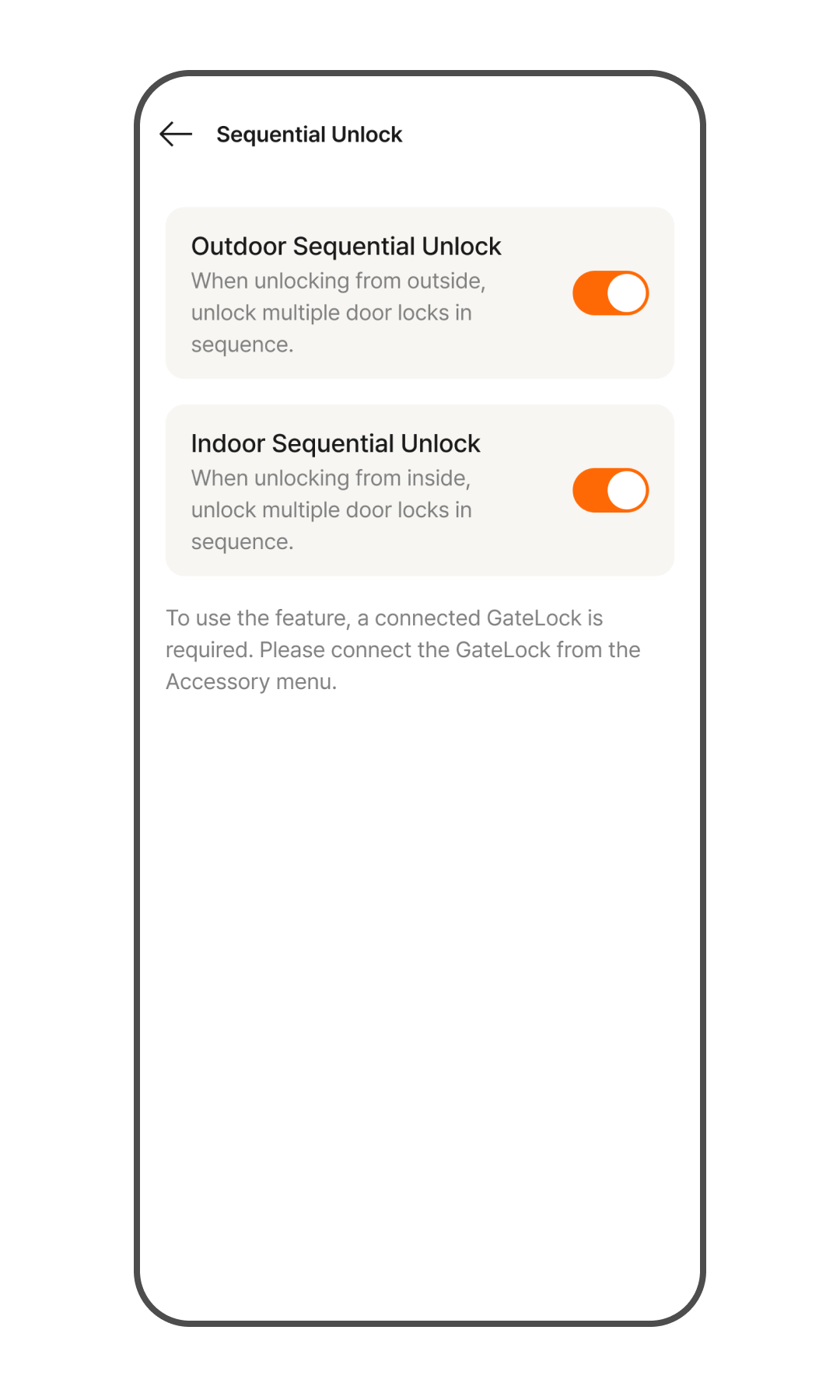
Sequential Unlock is designed for homes where a gate lock and a main door lock are installed together. Opening one lock will automatically trigger the other to unlock in sequence. You can manage the settings for each unlocking direction individually.
Set up in the App
- Go to Door Lock > More (⋮) > Option Settings on the app Home screen.
- Tap [Sequential Unlock].
- Toggle the switches on or off to configure each setting as needed:
- Outdoor Sequential Unlock: Sequentially unlocks multiple door locks when unlocking from the outside. (Default: ON)
- Indoor Sequential Unlock: Sequentially unlocks multiple door locks when unlocking from the inside. (Default: ON)
Manage on the device
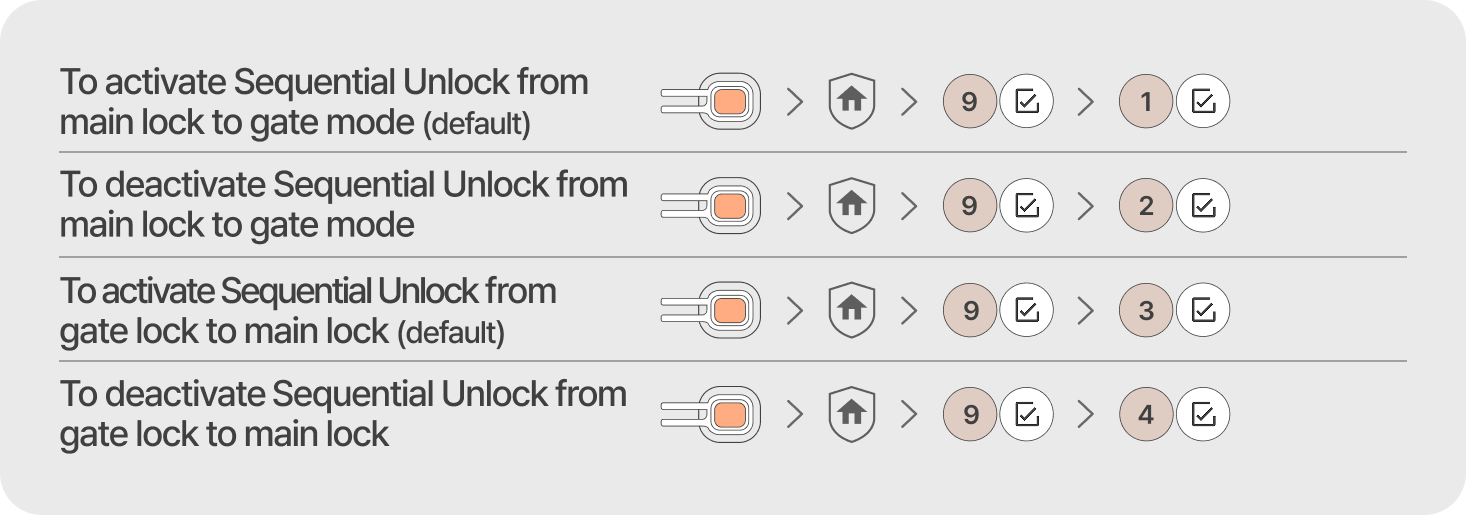
[Outdoor] Main Lock → Gate Lock
- To Enable (Default) : Register (Hold 5 sec) > > 9+ > 1+
- To Disable : Register (Hold 5 sec) > > 9+ > 2+
[Indoor] Gate Lock → Main Lock
- To Enable (Default) : Register (Hold 5 sec) > > 9+ > 3+
- To Disable : Register (Hold 5 sec) > > 9+ > 4+
Voice Language
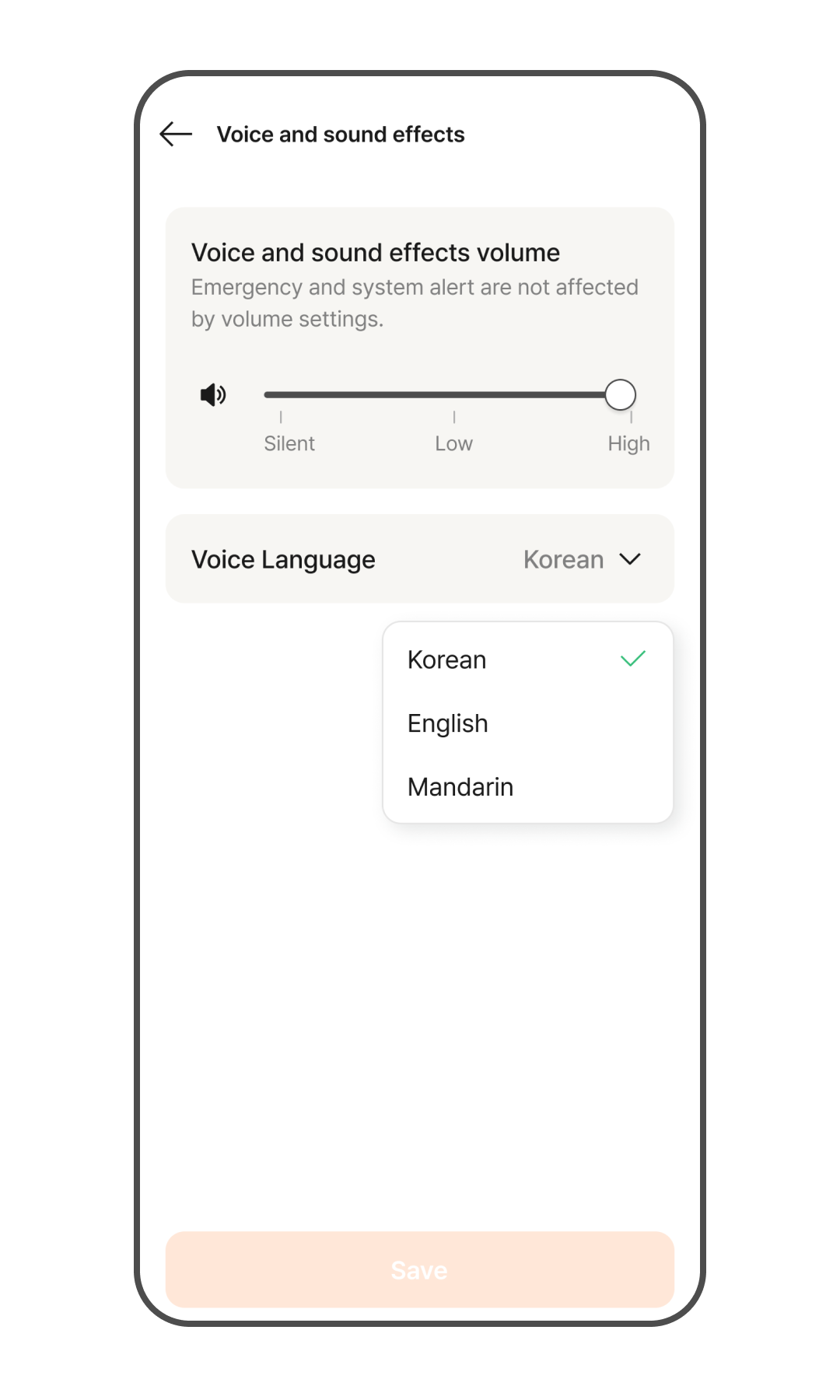
This feature allows you to change the language of the door lock's voice guidance.
Manage on the App
- Go to Door Lock > More (⋮) > Option Settings on the app Home screen.
- Tap [Voice and sound effects].
- Tap the voice language drop-down menu to select your desired language.
Face Recognition
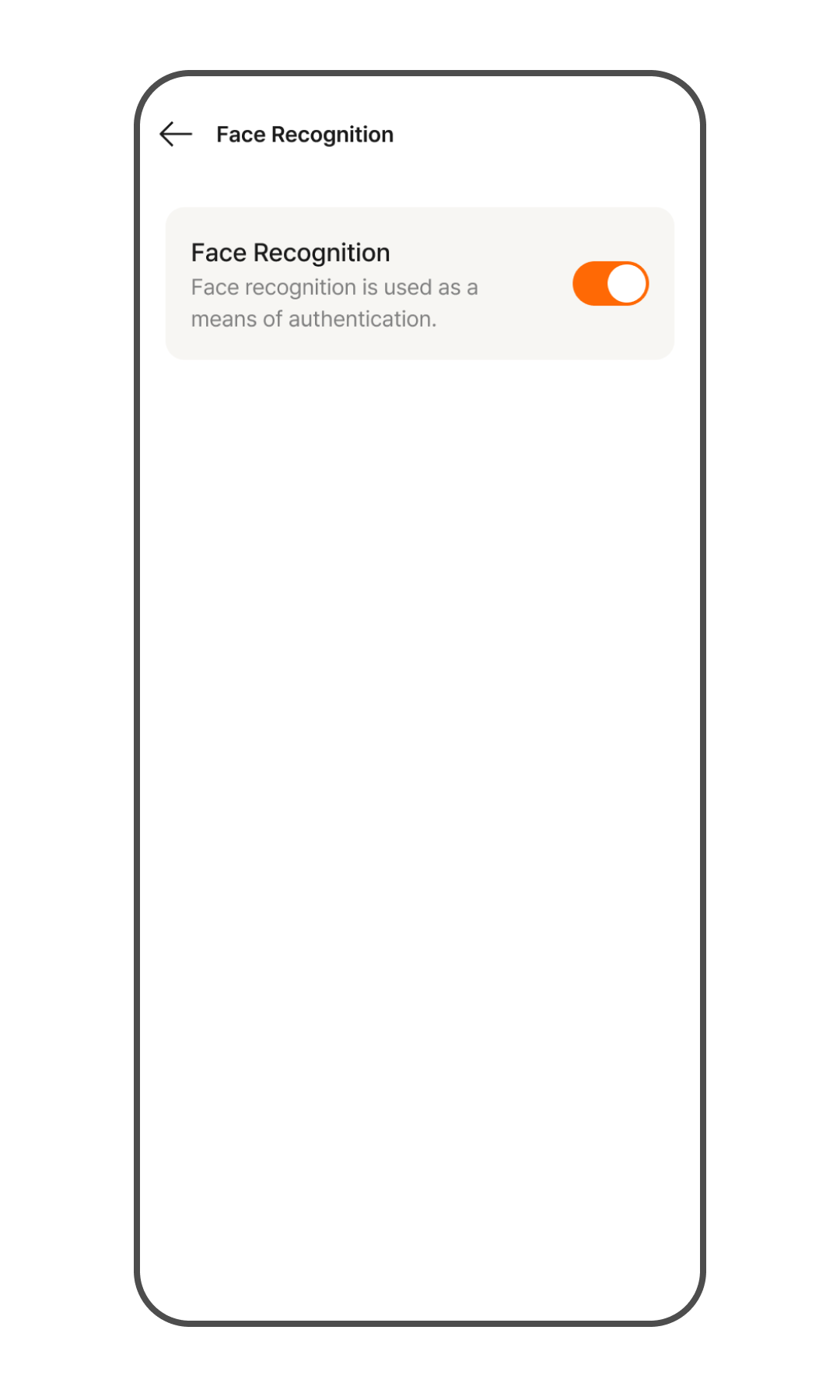
This feature allows you to use face authentication as an authentication method. You can unlock the door lock by recognizing a registered face. If there is no registered face, the default setting is disabled.
Manage on the App
- Go to Door Lock > More (⋮) > Option Settings on the app Home screen.
- Tap [Face Authentication].
- Turn the toggle on or off to enable/disable the feature.
Passcode Authentication
This feature allows you to use passcode authentication as an authentication method. You can enter your passcode on the door lock keypad to gain access. The default setting is passcode authentication enabled.
Manage on the App
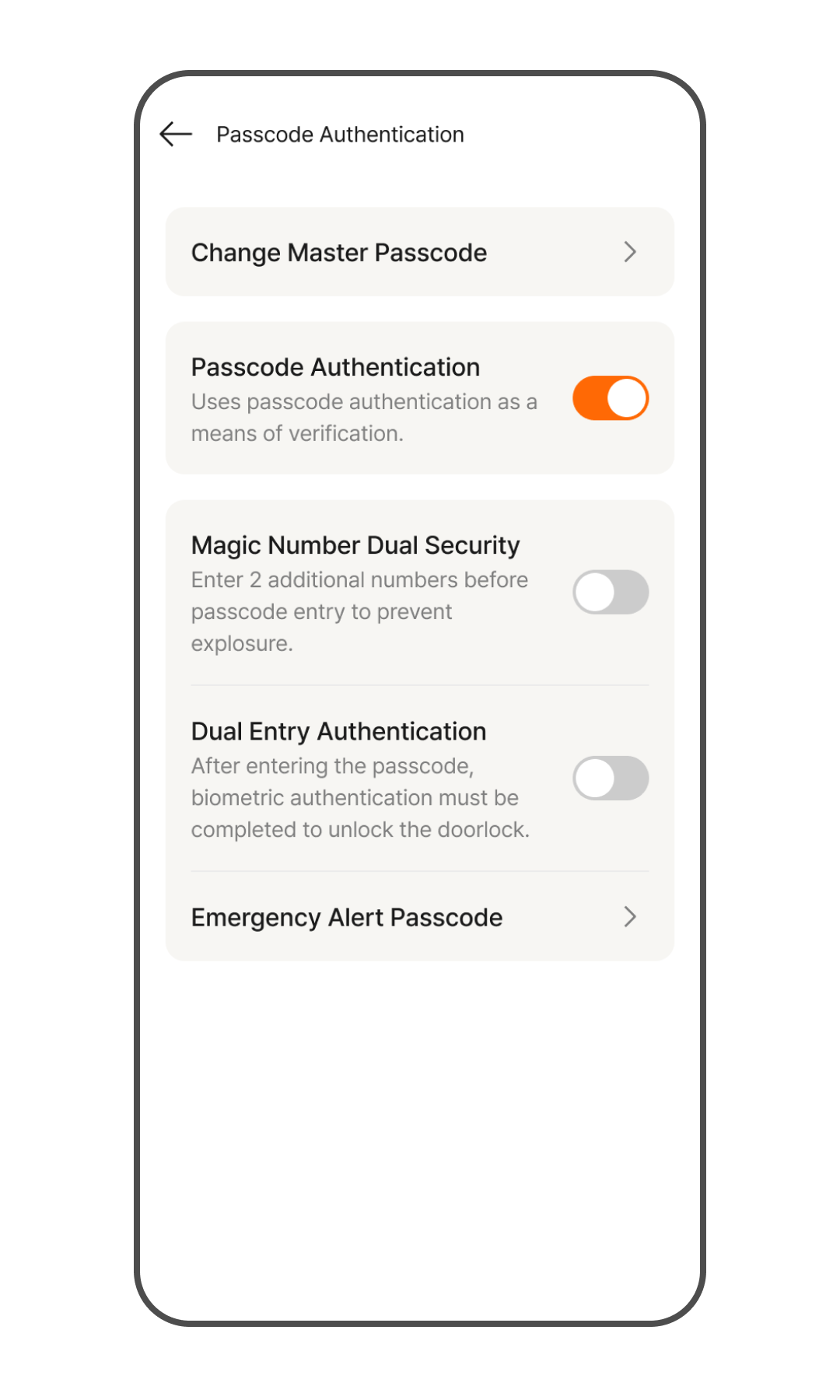
- Go to Door Lock > More (⋮) > Option Settings on the app Home screen.
- Tap [Passcode Authentication].
- Turn the toggle on or off to enable/disable the feature. The default setting is ON.
Emergency Alert Passcode
This passcode can be used in an emergency situation. Unlocking the door lock with the emergency alert passcode opens the door normally while simultaneously sending a push notification to members registered in the same Home.
- Numbers identical to an already registered passcode cannot be registered as they are flagged as duplicates. (Applies to Master, User, Guest, and Emergency Alert passcodes)
Manage on the App
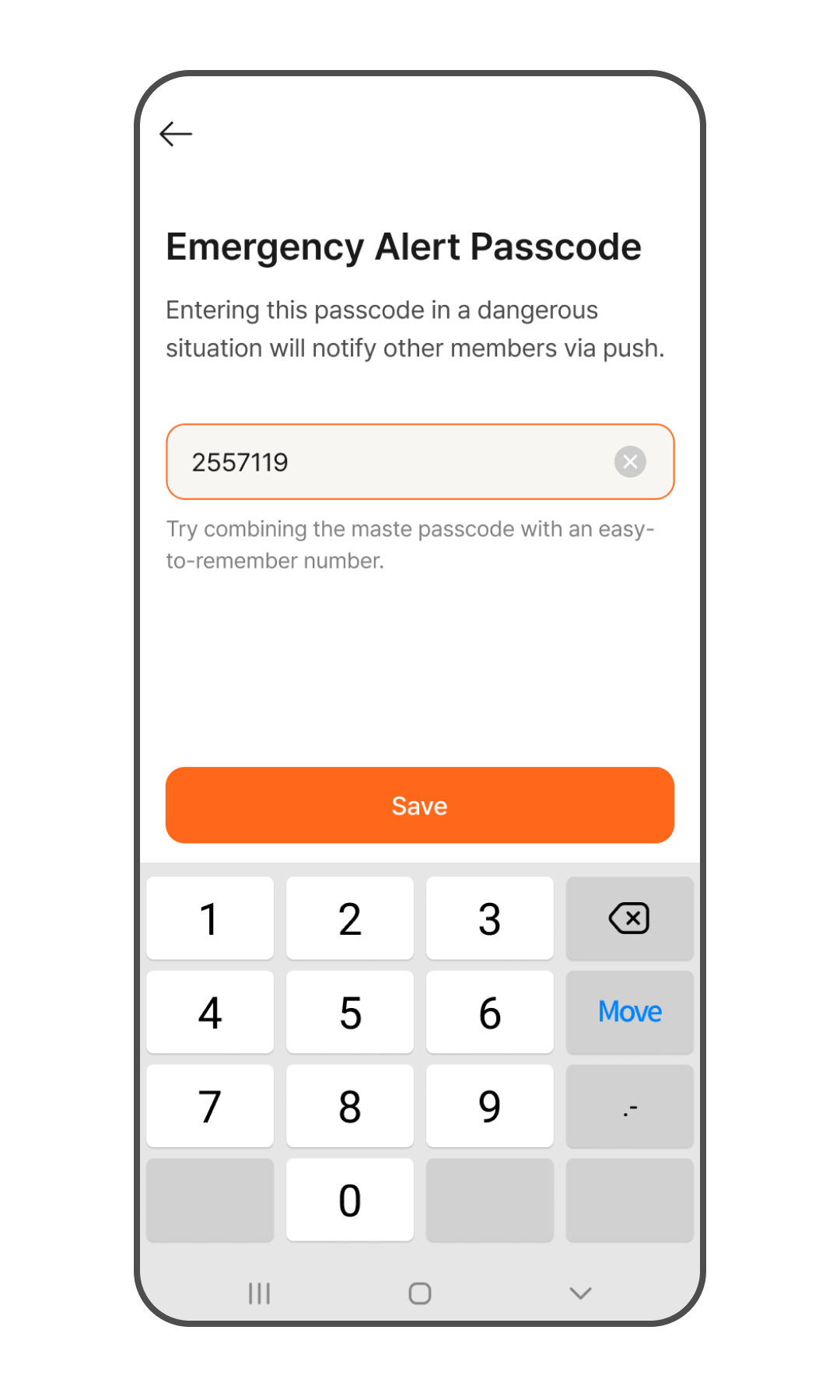
- Go to Door Lock > More (⋮) > Option Settings on the app Home screen.
- Tap [Passcode Authentication].
- Tap [Emergency Alert Passcode].
- Enter the emergency alert passcode you want to use and tap [Save].
Door Open Alarm Duration
An alarm will sound if the door remains unclosed for the set time (default: 60 seconds). It detects when the door is not fully closed upon leaving and alerts the user.
Manage on the App
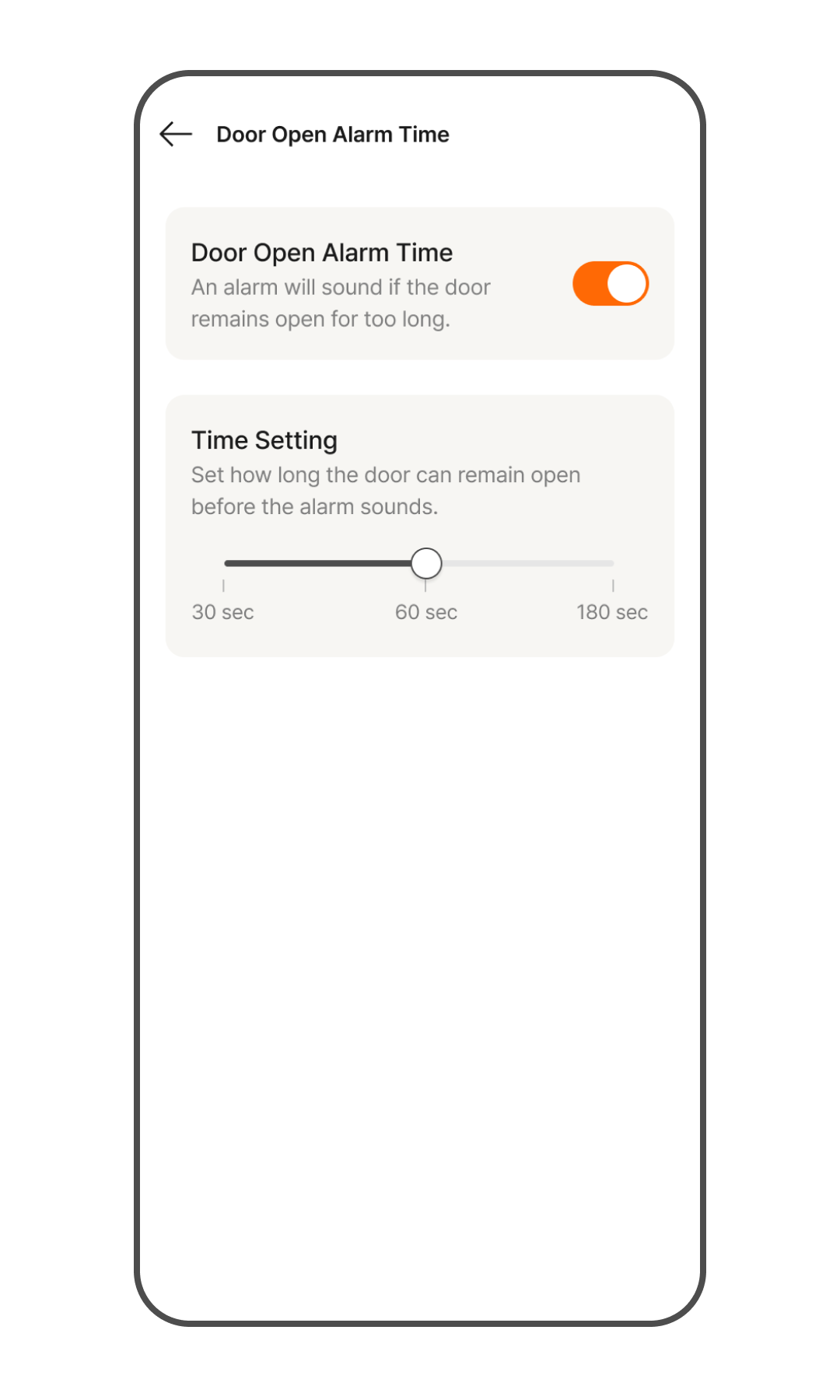
- Go to Door Lock > More (⋮) > Option Settings on the app Home screen.
- Tap [Door Open Alarm Time].
- Turn on the top toggle to enable the feature. The default setting is ON.
- Adjust the bottom slider to set the time before the alarm sounds. You can choose among 30 seconds, 60 seconds, or 180 seconds. The default setting is 60 seconds.
Anti-Tamper Function
This feature sounds a warning alarm and blocks the door lock from operating if it is incorrectly manipulated from the outside.
Regardless of the authentication method—such as passcode, fingerprint, key tag, or mobile key—if a total of 5 authentication errors accumulate, an error sound will play followed by a voice guidance announcing a 3-minute operation suspension, during which the door lock will stop operating. For example, failing 2 passcode attempts and 3 key tag attempts is considered a total of 5 errors, and operation will be suspended. (Face authentication is not included in the error count.)