Manage Authentication Methods in the App
Registering
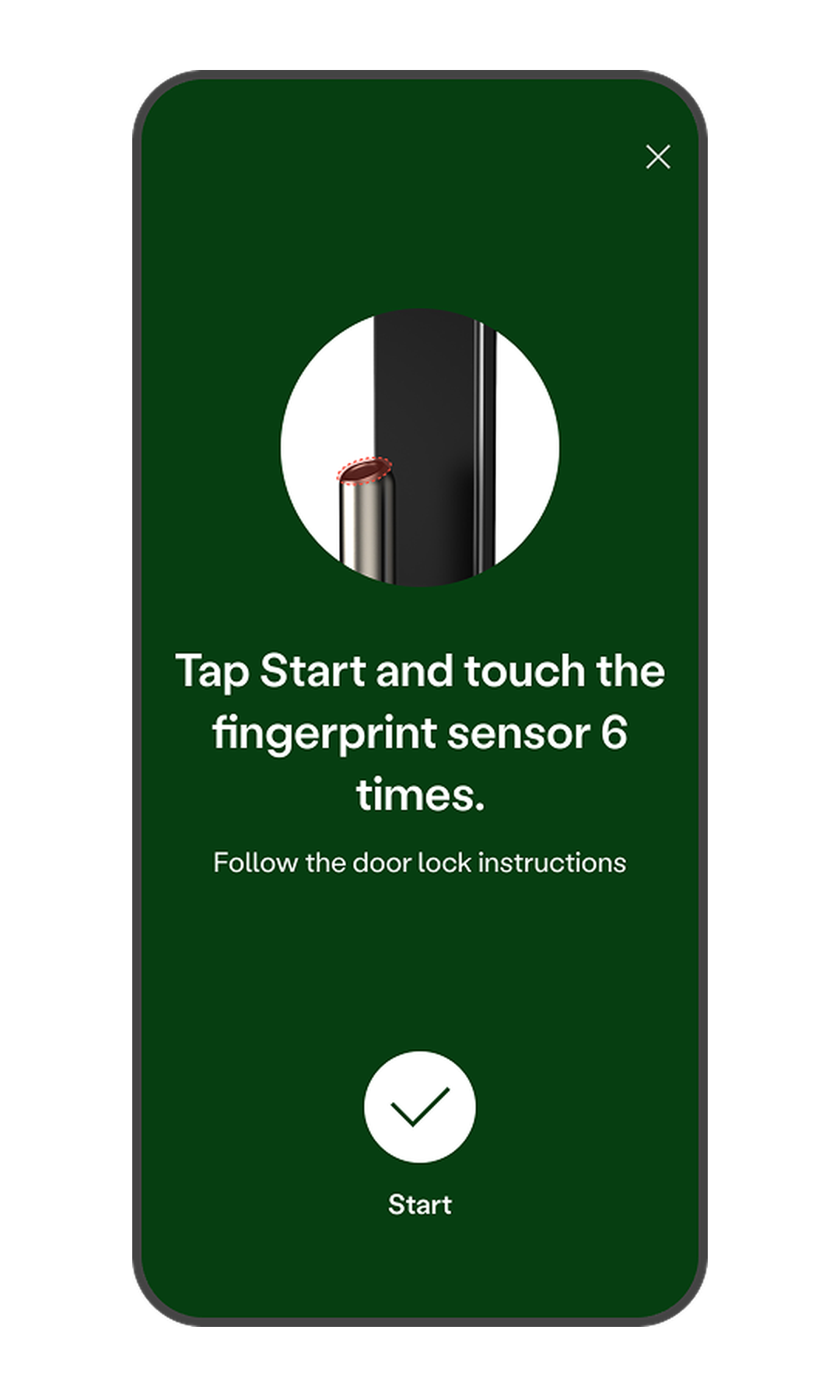
- Tap the door lock section on the app Home screen.
* After completing door lock registration, you will be automatically directed to the screen where you can add authentication methods. - Tap the [User Management] menu.
- Tap your profile.
- Tap [Add] in the section for the authentication method you want to register.
- Press the [Start] button, and the door lock will switch to authentication method registration mode.
- Follow the on-screen instructions to register your authentication method.
* Closing the page during registration will not exit the door lock's registration mode. - The authentication method is registered when the page closes automatically.
Editing or Deleting Authentication Methods
- Tap the door lock section on the app Home screen.
* After completing door lock registration, you will be automatically directed to the screen where you can add authentication methods. - Tap the [User Management] menu.
- Tap your profile.
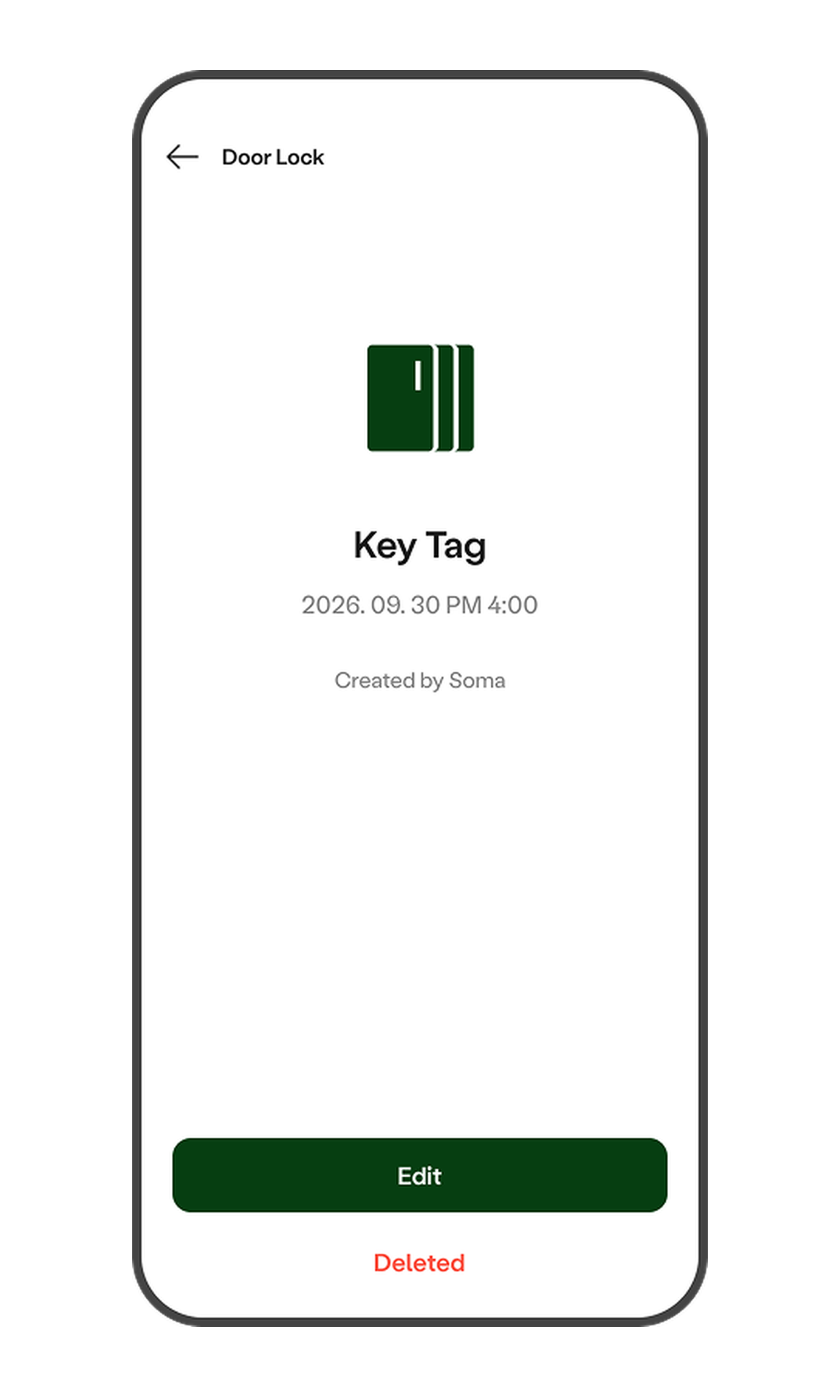
- Tap the authentication method you want to edit or delete.
- Tap Edit to change the name, or tap Delete to remove it.
Manage Authentication Methods on the Device
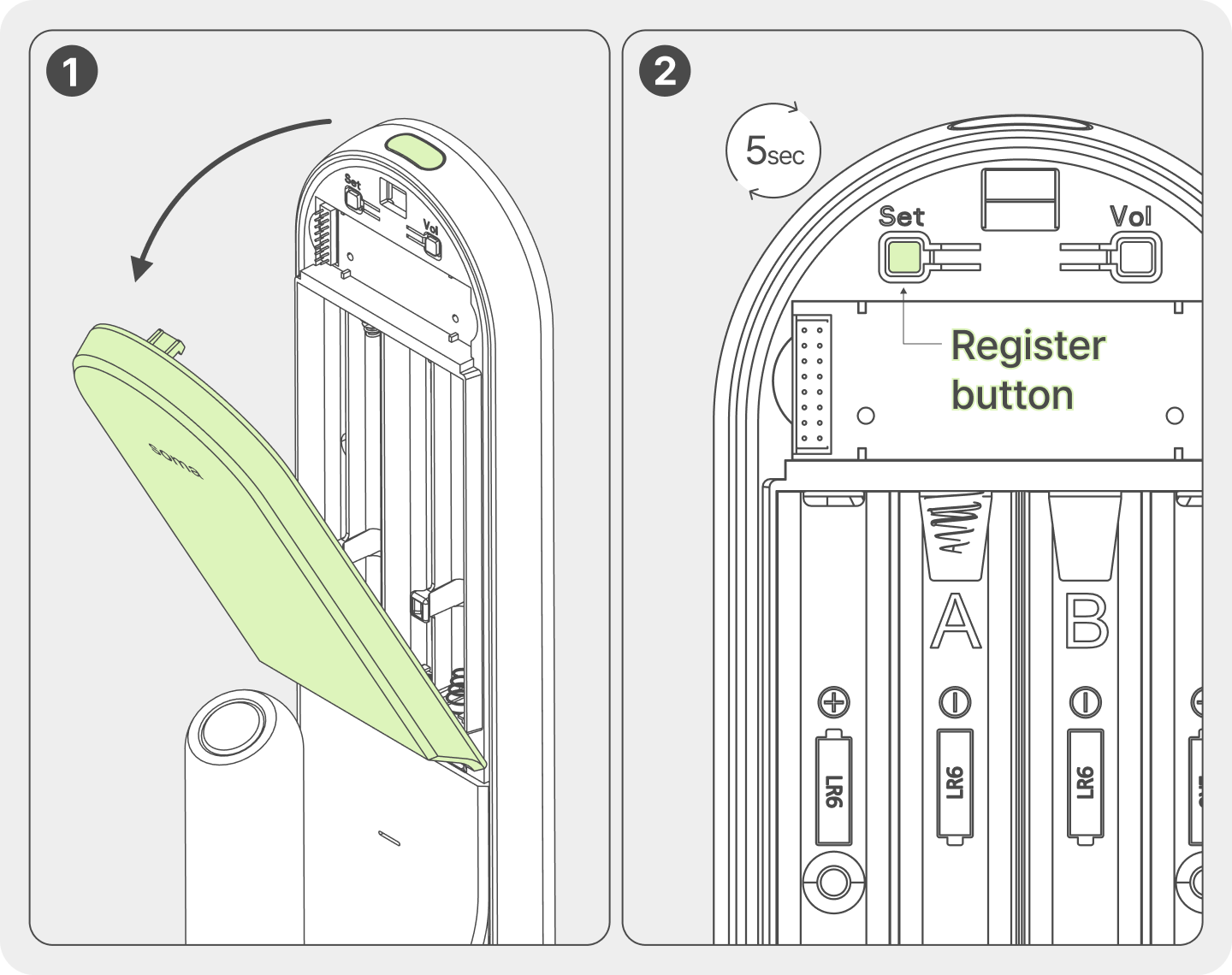
- Open the wireless module compartment cover at the bottom of the indoor unit.
- Press and hold the [Register] button for 5 seconds until you hear the voice prompt: "Authentication Method Management."
- Follow the voice guidance to register your access keys.
Managing Master Passcode
- Passcodes can be set from 4 to 12 digits.
- The default Master Passcode is "1234". (Must be changed after product installation)
- Only 1 Master Passcode can be registered per door lock.
- Passcodes identical to an already registered one will be flagged as duplicates and cannot be registered. (Applies to Master, User, Visitor, and Emergency Alert passcodes)
Manage on the App
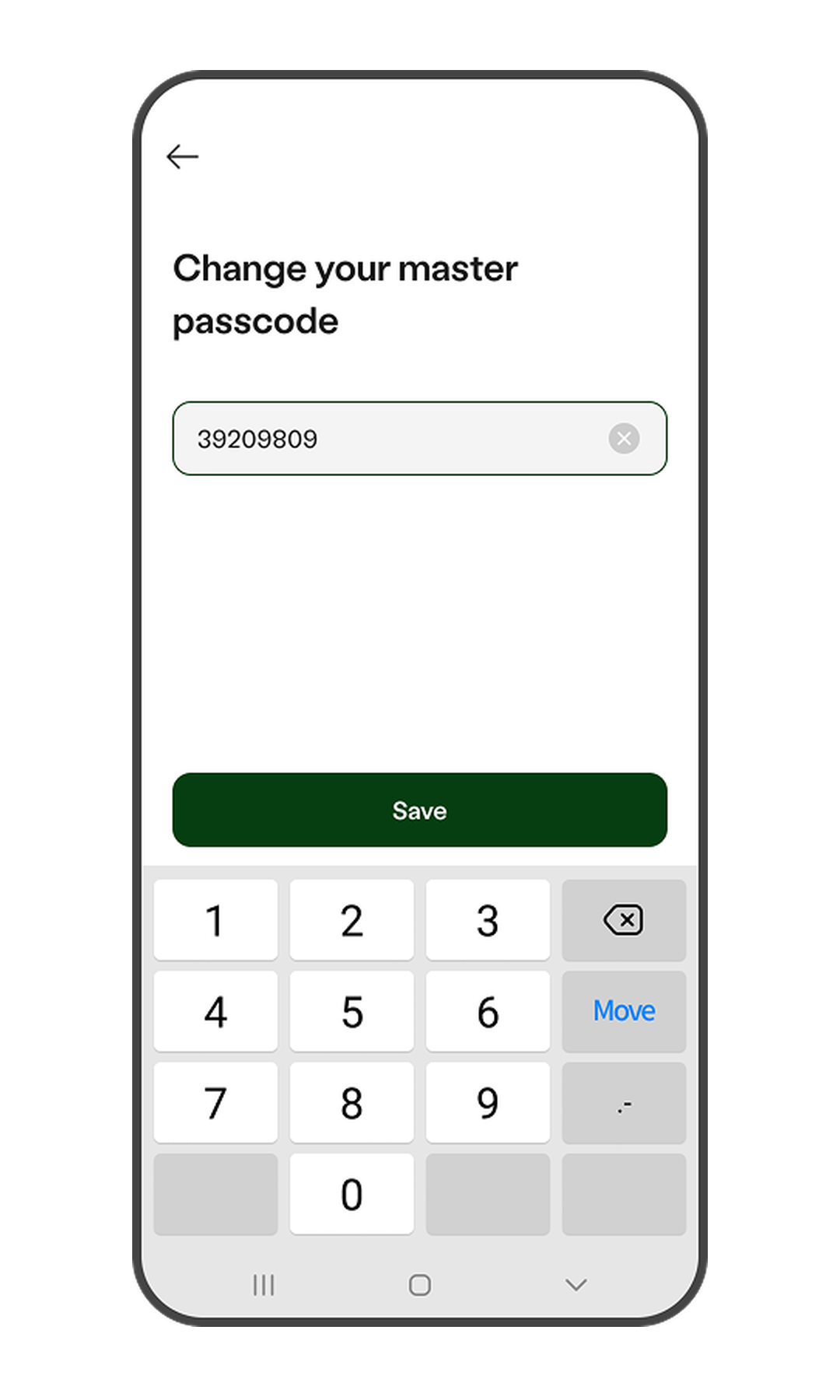
After completing door lock registration, you will be automatically directed to the screen where you can change the initial Master Passcode. To change it during use, please refer to the instructions below.
- Go to Door Lock > More (⋮) > Option Settings on the app Home screen.
- Tap [Change Master Passcode] under the [Passcode Authentication] menu.
- When the "Please change your Master Passcode" screen appears, enter a new 4 to 12-digit passcode.
- Once entered, tap [Save].
- When the message "Master Passcode change is complete." appears, the change has been successfully completed.
Manage on the Device (0 +  )
)
- Register (Hold 5 sec) > Master passcode + > 0 + > New Master passcode + > Register (exit)
Managing User Passcodes
- Passcodes can be set from 4 to 12 digits.
- A maximum of 28 passcodes can be registered per door lock.
- When registering via the app, only 1 passcode can be registered per user.
- Passcodes identical to an already registered one will be flagged as duplicates and cannot be registered. (Applies to Master, User, Visitor, and Emergency Alert passcodes)
Manage on the App
To register, open the Zigbang Smart Home app and follow the steps in the [Managing Authentication Methods] section.
Manage on the Device (1 + )
- Register (add): Register (Hold 5 sec) > Master passcode + > 1 + > 1 + > New passcode + > Register (exit)
- Delete all: Register (Hold 5 sec) > Master passcode + > 1 + > 2 + > Register (exit)
Managing Fingerprints

- Register your fingerprint 6 times on the fingerprint sensor, slightly shifting its position each time.
- Each time a fingerprint is registered, a "ding" sound will play and the registration count will be displayed on the keypad.
- A maximum of 50 fingerprints can be registered per door lock.
- When registering via the app, up to 10 fingerprints can be registered per user.
Manage on the App
To register, open the Zigbang Smart Home app and follow the steps in the [Managing Authentication Methods] section.
Manage on the Device (2 + )
- Register (add): Register (Hold 5 sec) > Master passcode + > 2 + > 1 + > Scan fingerprint 6 times > Register (exit)
- Delete all: Register (Hold 5 sec) > Master passcode + > 1 + > 2 + > Register (exit)
Managing Key Tags
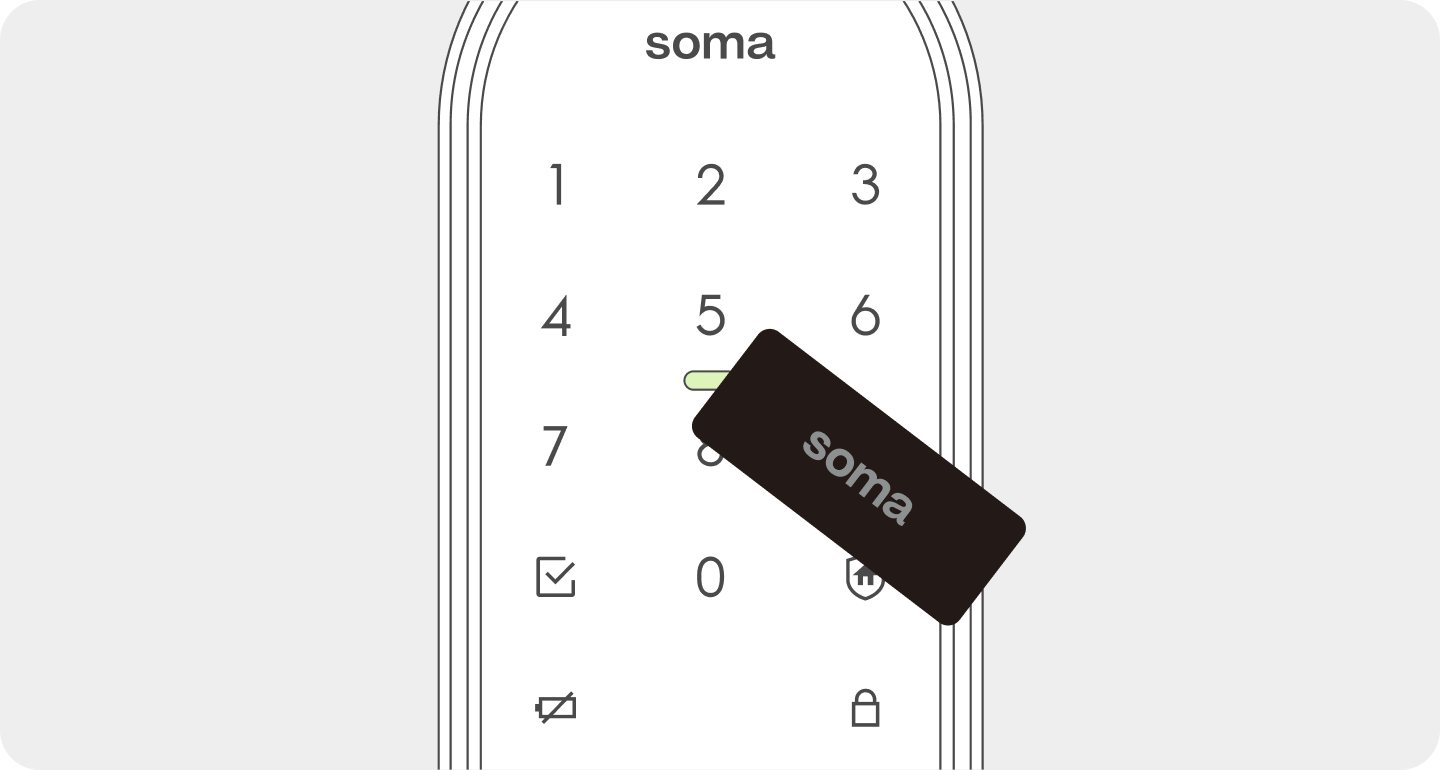
- You can check the location for key tag input in the image.
- A maximum of 50 key tags can be registered per door lock.
- When registering via the app, up to 10 key tags can be registered per user.
Manage on the App
To register, open the Zigbang Smart Home app and follow the steps in the [Managing Authentication Methods] section.
Manage on the Device (3 + )
- Register (add): Register (Hold 5 sec) > Master passcode + > 3 + > 1 + > Place key tag > Register (exit)
- Delete all: Register (Hold 5 sec) > Master passcode + > 3 + > 2 + > Register (exit)
Managing Wireless Remote Controls
- This method allows you to register a wireless remote control (sold separately), with up to 3 units supported (including the home wallpad).
- To register a remote control, press and hold the [OPEN] button for at least 3 seconds until you hear a completion tone.
- Recommended for environments with frequent visitors, such as offices, tutoring rooms, or for individuals with limited mobility.
Manage on the App
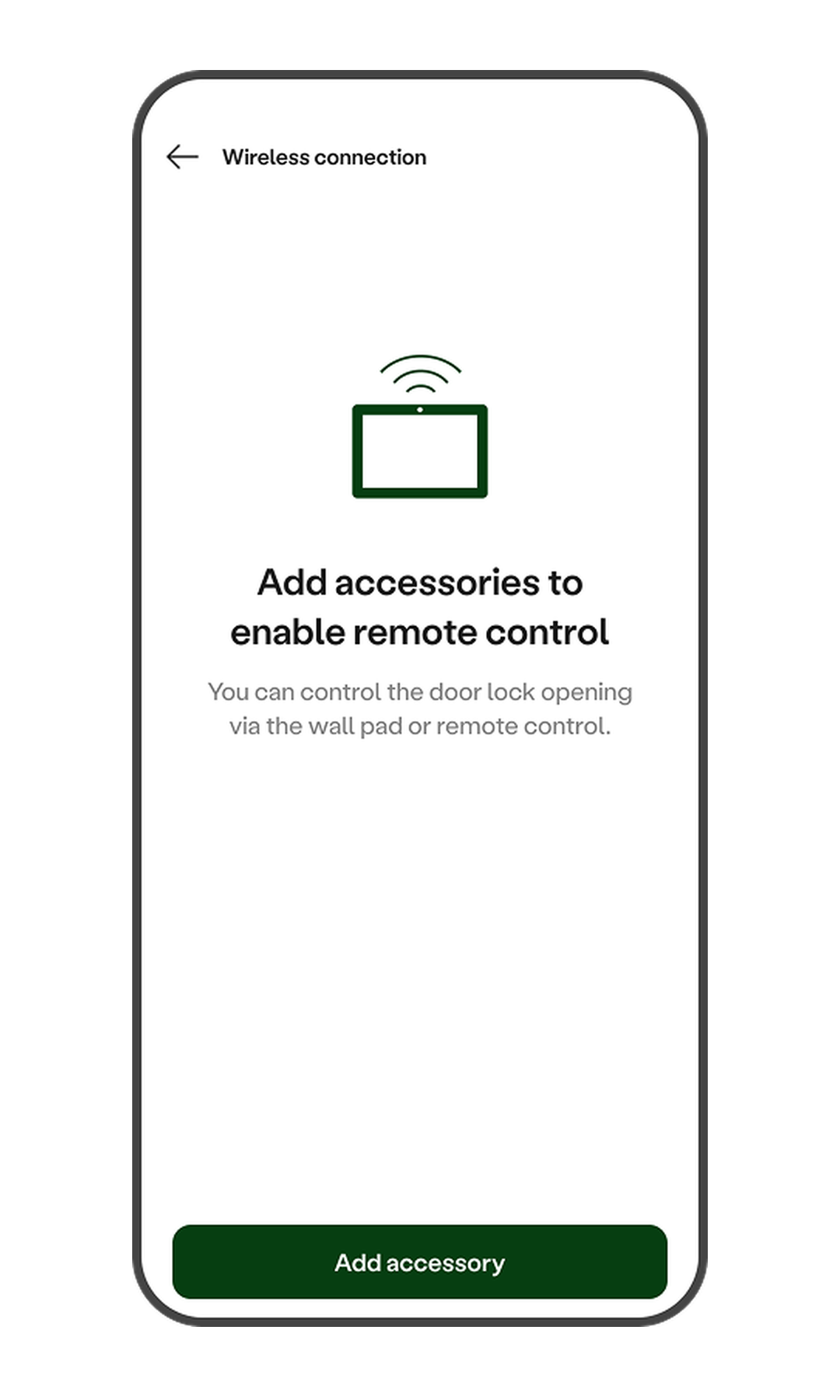
- Go to Door Lock > More (⋮) > Option Settings on the app Home screen.
- Tap [Wireless Connection].
- Tap [Add Accessory].
- Follow the on-screen instructions to register the wireless remote.
Manage on the Device (4 + )
- Register (add): Register (Hold 5 sec) > Master passcode + > 4 + > 1 + > Place key tag > Register (exit)
- Delete all: Register (Hold 5 sec) > Master passcode + > 4 + > 2 + > Register (exit)
Managing Mobile Key
- Once the door lock is registered in the app, the mobile key can be used without any additional steps.
- The mobile key can only be used through the app.
Manage on the App
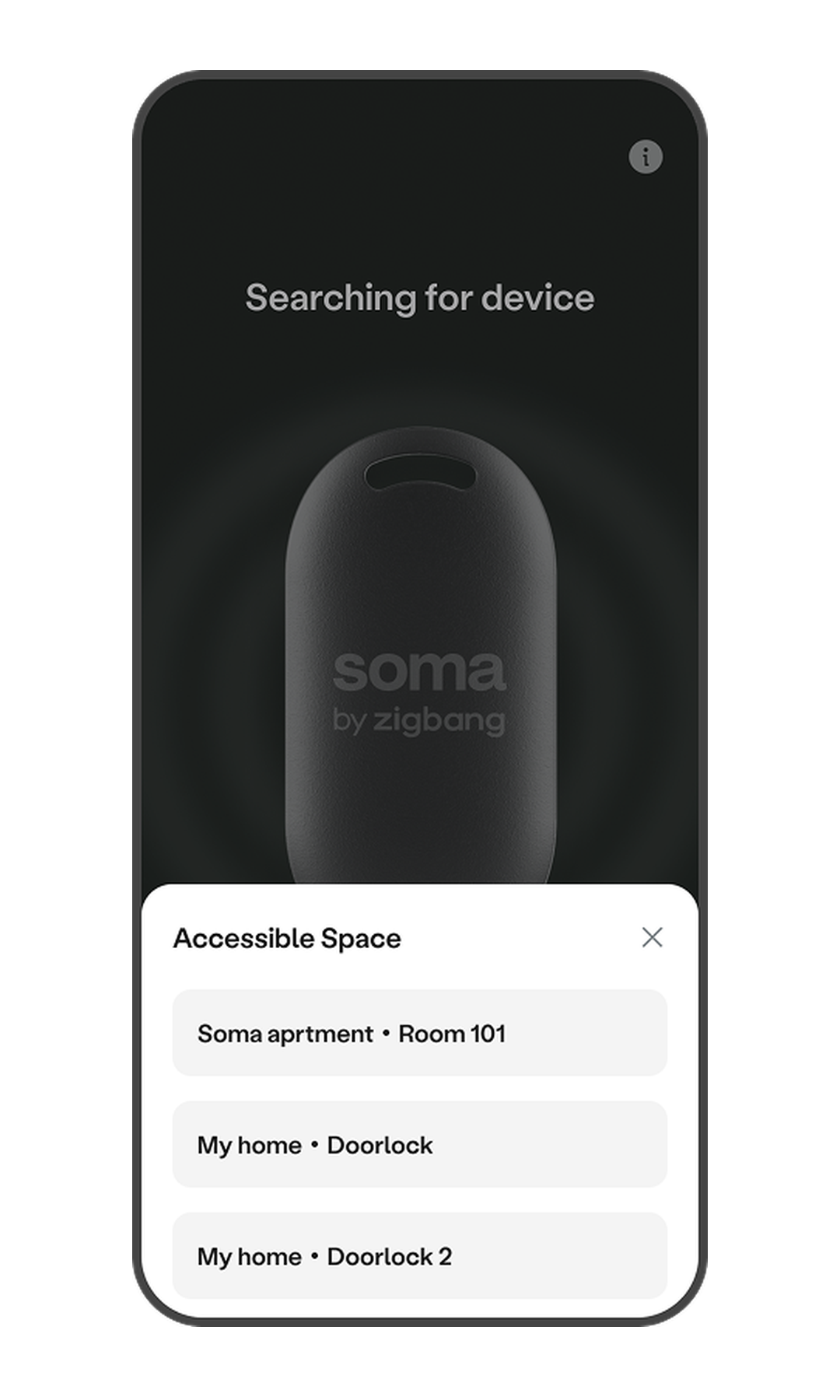
- On the app's Home screen, tap the [Key] icon in the bottom right corner.
- Tap [Accessible Space].
- Here, you can view and manage the list of devices accessible with your digital keys.
*Tip: Any temporary keys you have been invited to use for other locations will also appear in this area.
Managing Guest Keys (Temporary Access)
- Guest access keys can only be issued and deleted through the app.
- Guest access is designed for users who visit your home irregularly.
- Up to 20 temporary (guest) passcodes can be issued per door lock.
- Set a period to register desired guests and share the key with them.
- Passcodes identical to an already registered one will be flagged as duplicates and cannot be registered. (Applies to Master, User, Visitor, and Emergency Alert passcodes)
Manage on the App
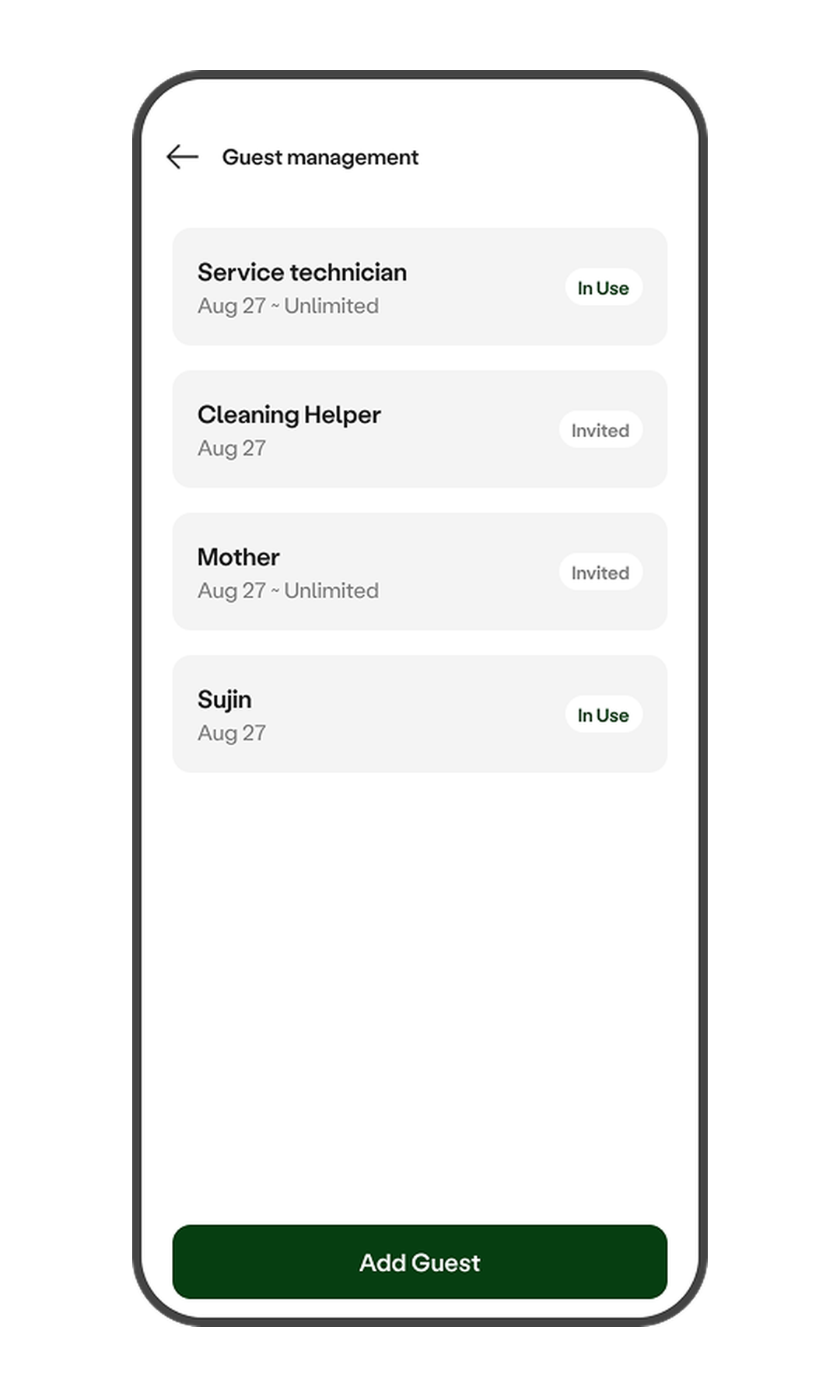
- Tap the Home > Door Lock > [Guest Management] menu.
- You can view the list of currently registered guest keys, as well as their validity periods and status.
- Guest keys can be issued as a temporary passcode or a mobile key.
- To add a guest, tap the [Add Guest] button.
- Enter the visit period and the guest's name.
- Enter the passcode or email address to send to the guest.
- Share the details with the guest.
- The guest can enter using the received passcode or mobile key during the set period.